How to Add a User to Google Search Console
Add a user to Google Search Console in a few minutes, so your agency can work on your site. You stay the owner, and nobody shares a password.
Step-by-step guide · about 5 minutes · checked October 13, 2026
Step by step
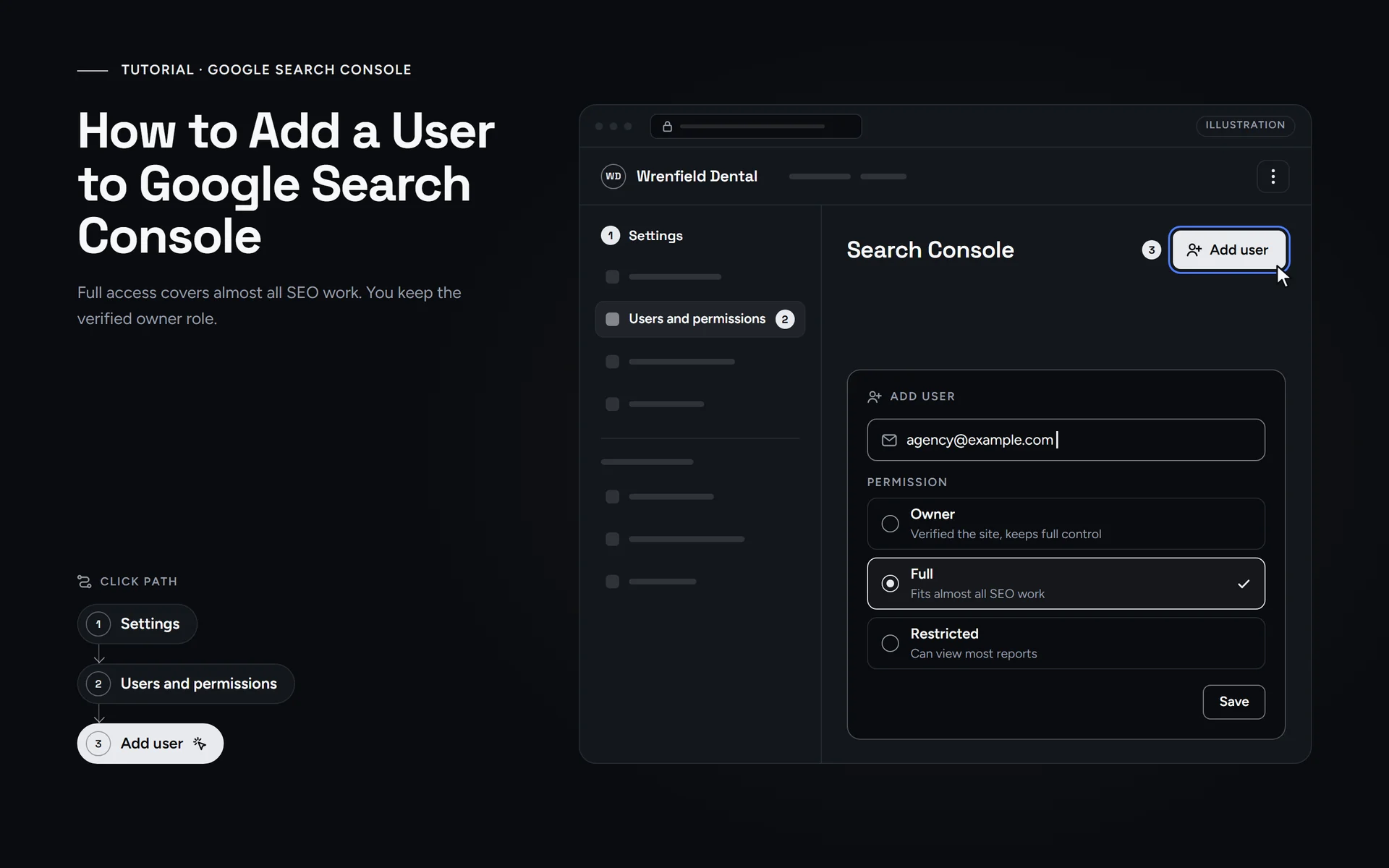
Short answer: To add a user to Google Search Console, open your site’s property and click Settings. Then click Users and permissions, then Add user. Enter your agency’s Google Account email, choose Full, and save. Full covers almost all SEO work. Keep the Owner role yourself, so you stay in control of your data.
What do you need before you start?
Before you add a user to Google Search Console, check that you are an owner of the property. Only owners can see the “Users and permissions” page. So a Full or Restricted user cannot add anyone. If a former web designer set up Search Console for you, ask them to make you an owner first.
- Your own Google Account, with Owner access to the property.
- The exact Google Account email your agency wants to use. Email groups and mailing lists will not work.
- A computer with a web browser. Google’s help only covers the website, not an app.
Also check which property you use. A Domain property, such as yourbusiness.com, covers every version of your site. A URL-prefix property, such as https://www.yourbusiness.com/, covers only addresses that start with that exact prefix. So it leaves out http:// and other subdomains. If you have both, add your agency to the Domain property, or to each property they need.
How do you add a user to Google Search Console?
These steps follow Google’s own help page on managing owners, users and permissions. The task takes a few minutes, and you can undo it at any time.
- Go to search.google.com/search-console and sign in with the Google Account that owns your site.
- Use the property selector at the top left to choose your website. If you have a Domain property, pick that one.
- In the left menu, click “Settings”. It sits at the very bottom of the menu.
- Next, open “Users and permissions”. You now see everyone who has access today.
- Then click “Add user” and type your agency’s Google Account email, exactly as they sent it.
- Choose “Full” as the permission level. This level fits almost all SEO work.
- Save your changes. Your agency now shows up in the list with the Full level.
- Finally, let your agency know, so they can sign in and start.
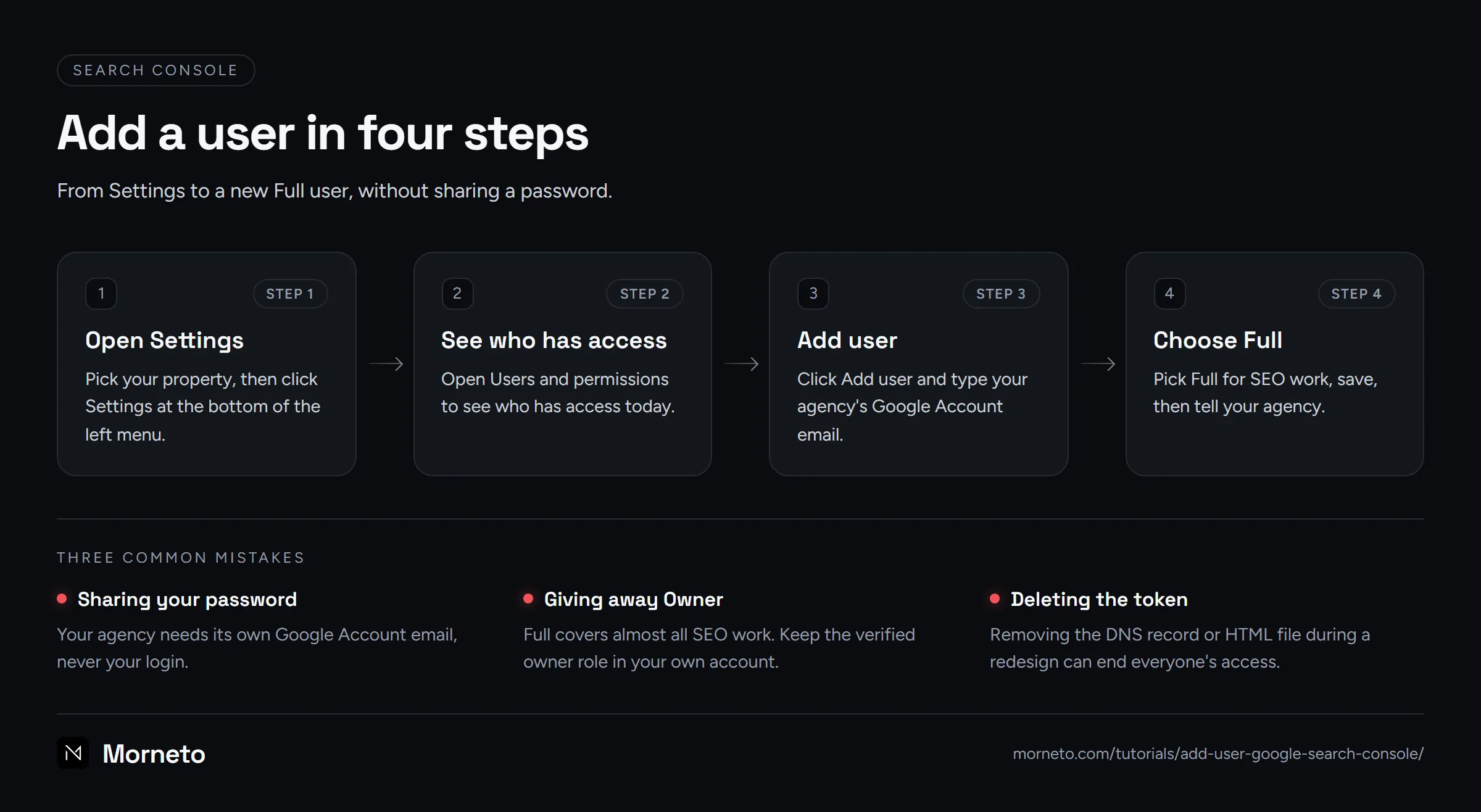
Did someone ask for your password instead? Say no. A new user signs in with their own Google Account, and you can remove their access at any time. Morneto never asks a client for a password, and a good agency will not either.
Which permission should a new Google Search Console user get?
When you add a user to Google Search Console, the permission level decides what they can see and change. The menu offers three levels: Owner, Full and Restricted. However, owners come in two types, so the table below has four rows.
| Level | What it allows | Who should get it |
|---|---|---|
| Owner, verified | Full control, including adding users and linking Google Analytics. This owner proved ownership with a token, such as a DNS record. You can remove a verified owner, but you cannot downgrade one. | You, the business owner. |
| Owner, delegated | The same rights, given by a verified owner through Add user, without a token. You can change or remove a delegated owner at any time. | Only someone who must add people or link Google Analytics. |
| Full | Sees all data and can take some actions, such as URL Inspection, Submit sitemap, Remove URLs, Disavow links and share report links. A Full user cannot add users or link Google Analytics. | Your SEO agency or web designer, in most cases. |
| Restricted | Simple view rights on most data. URL Inspection works as fetch only. Cannot submit sitemaps or share report links, and Remove URLs is view only. | Someone who only reads reports. |
For an SEO agency, Full is usually the right choice. It covers sitemaps, URL Inspection, removals and fixes. That is the work behind a technical SEO checklist, for example. However, a Full user cannot add other people or link Google Analytics.
So choose Owner only when your agency must do one of those two things. In that case, pick Owner in the same Add user window. As a result, they become a delegated owner, and you can still change or remove their access yourself. Restricted fits someone who only follows the numbers that show SEO progress.
What does your agency have to do next?
Very little. After you add a user to Google Search Console, there is nothing to accept. Google’s help describes no invitation step. Your agency signs in at search.google.com/search-console with the email you added. Then they open the property selector and choose your site.
If your site does not show up for them, compare the two email addresses first. People with several Google Accounts often sign in with the wrong one. Next, check that you used the right property. Your agency does not need to verify the site with its own token for normal SEO work.
How do you remove a user from Search Console later?
- Open “Settings” and then “Users and permissions” for the property.
- Find the person and click the menu next to their name.
- Choose “Remove access”. According to Google, the change should take effect very quickly.
Want to keep them, but with less access? In that case, use “Change permissions” in the same menu. That option stays inactive for a verified owner, because Google lets you remove a verified owner but not downgrade one.
If the person was a verified owner, there is one more step. Their token, such as a DNS record or an HTML file, stays on your site, so they could verify again. Delete that token, and check the “Unused ownership tokens” list on the same page. Finally, open “Ownership history” to see every owner change and verification attempt.
Good to know: what can go wrong with a Search Console user?
- Keep the token in place. Don’t delete the verification DNS record or HTML file during a redesign or a move to a new host. Google checks it now and then, and access ends after a grace period if the token disappears.
- Check shared tokens. Some tokens also serve other Google services, such as Merchant Center or Google Workspace. Look before you delete one.
- Owner-only error. Google may show the error “This user may only be added as ‘Owner’.” That person already owns a parent property, so Owner is the only level left.
- One issue only? On an issue details page in the Page indexing report, an owner or a Full user can click Share. The enhancement reports work the same way. That link opens only that issue page and its validation history, and you can turn sharing off again. For example, Google’s Search Central blog suggests this instead of adding a user.
- Analytics is separate. Search Console access does not include your Google Analytics data. For that, add your agency in Google Analytics too.
Why should you stay the verified owner?
Your verified ownership holds everything else together. If every verified owner loses verification, all users lose access, delegated owners included. That is why the owner role belongs in your own Google Account, not in your agency’s. Then your data stays yours when you switch agencies. If only a former designer is verified today, verify the property yourself too.
Not sure who owns your property today? In that case, you can send us a message and we will help you check, without asking for your password.
Sources
Where these steps come from
Checked on October 13, 2026 against the official help pages below.
- Managing owners, users, and permissions – Search Console Help
- Search Console Property Settings page – Search Console Help
- Navigating a Search Console report – Search Console Help
- Verify your site ownership – Search Console Help
- Add a website property to Search Console – Search Console Help
- Share a report or issue details page – Search Console Help
- Updating Search Console users and permissions management – Google Search Central Blog
More tutorials
 Guide · 5 min
Google Ads
How to Add a User to Google Ads
Give your agency access without sharing a password. Accept their manager link or invite them with the right access level, and keep your account and billing.
Read the guide- Guide · 6 min
Analytics
Add a user to Google Analytics
Give your agency its own GA4 login: the Admin path, which role to pick and how to remove access later. No password sharing.
Read the guide - Guide · 5 min
Website
How to Add a User in WordPress
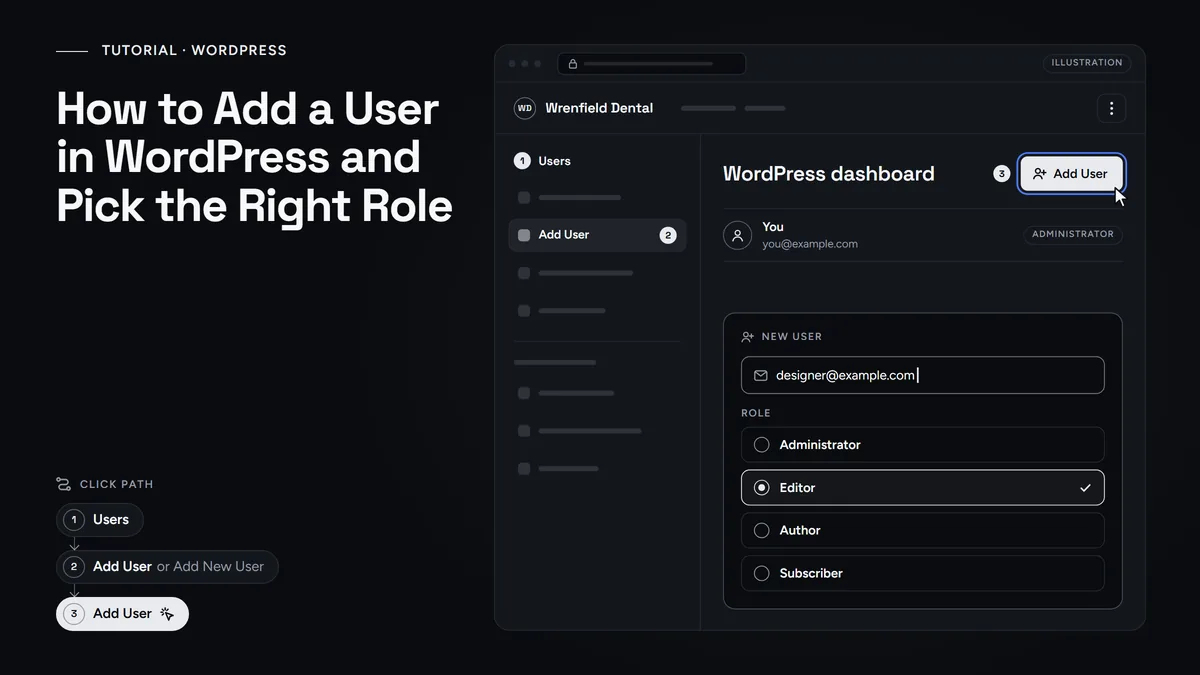
Give your web designer their own WordPress login with the right role, then lower or remove it when the work ends. No shared passwords.
Read the guide
Questions
Common questions
Should I give my SEO agency Owner or Full access?
In most cases, Full. It covers sitemaps, URL Inspection, removals and fixes. Choose Owner only if the agency must add other people or link Google Analytics. Either way, keep your own verified ownership.
Does my agency need my password?
No. Your agency signs in with its own Google Account after you add it as a user. So never share your own password. If an agency asks for it anyway, treat that as a warning sign.
What is the difference between a verified owner and a delegated owner?
A verified owner proved ownership with a token, such as a DNS record or an HTML file. A delegated owner got the Owner level from a verified owner through Add user. You can change or remove a delegated owner at any time, but you can only remove a verified owner.
Why can't I see Users and permissions in Settings?
Only owners see that page. If you are a Full or Restricted user, ask the person who set up the property to make you an owner. You can also verify ownership yourself, for example with a DNS record.
Can I add a user to Google Search Console from my phone?
Google’s help only describes the Search Console website, not an app. So the steps run in a web browser, and a computer makes the menus easiest to use.
Need a hand?
Rather have us check it with you?
Send us a message through the contact page and we will walk you through it on a short call. You keep ownership of every account, and we never ask for your password.