Add User to Google Analytics: Give Your Agency Access
Here is how to add a user to Google Analytics 4, so your agency or a colleague gets their own login. You keep ownership, nobody needs your password, and you can take access back anytime.
Step-by-step guide · about 6 minutes · checked October 13, 2026
Step by step
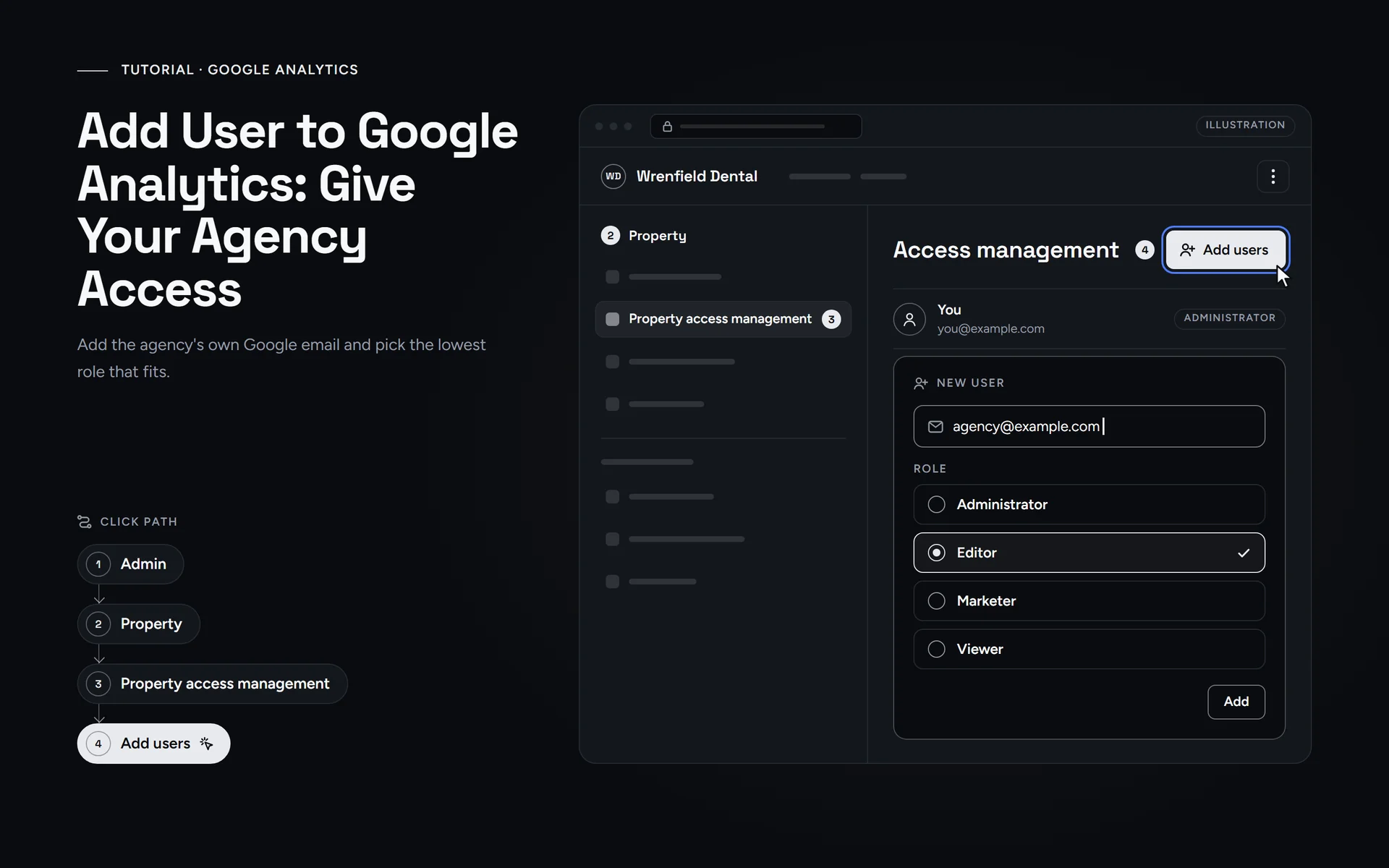
Short answer: To add a user to Google Analytics, sign in as an Administrator and click Admin. Under Property, open Property access management, click + and then Add users. Next, enter the person’s Google email address, pick a role and click Add. The email address you add becomes their Analytics login, so the person simply signs in with that address.
What do you need before you add a Google Analytics user?
Check these four things first, because each one can stop you halfway.
- The Administrator role. Only an Administrator can add people. If you lack it, ask whoever set up GA4 for you to make you an Administrator.
- Their Google email address. GA4 only accepts addresses that belong to a Google Account, such as Gmail or Google Workspace.
- The right property. A property usually tracks one website. If you run several sites, note which one the person needs.
- A desktop browser. Google’s help pages describe these steps in Analytics on the web (analytics.google.com). They do not cover the mobile app.
Also think about why the person needs access. An agency that only reports on numbers, such as those in our guide to SEO KPIs, rarely needs full control.
How do you add a user to Google Analytics?
Work through these steps in order. The steps follow Google’s help page on adding users, checked in October 2026.
- Go to analytics.google.com and sign in with the Google account that has the Administrator role.
- Then use the account and property selector at the top left to open the property for your website.
- After that, click “Admin” in the left-hand navigation menu.
- Under “Property”, click “Property access management”. For every property in the account, use “Account access management” under “Account” instead. Some screens show one item called “Access Management”.
- In the permissions list, click “+” and then “Add users”.
- Enter the person’s Google Account or Google Workspace email address. Then tick “Notify new users by email”.
- Pick a role and, if needed, a data restriction. The table below explains each option.
- Finally, click “Add”. The person now appears in the list with the role you chose.
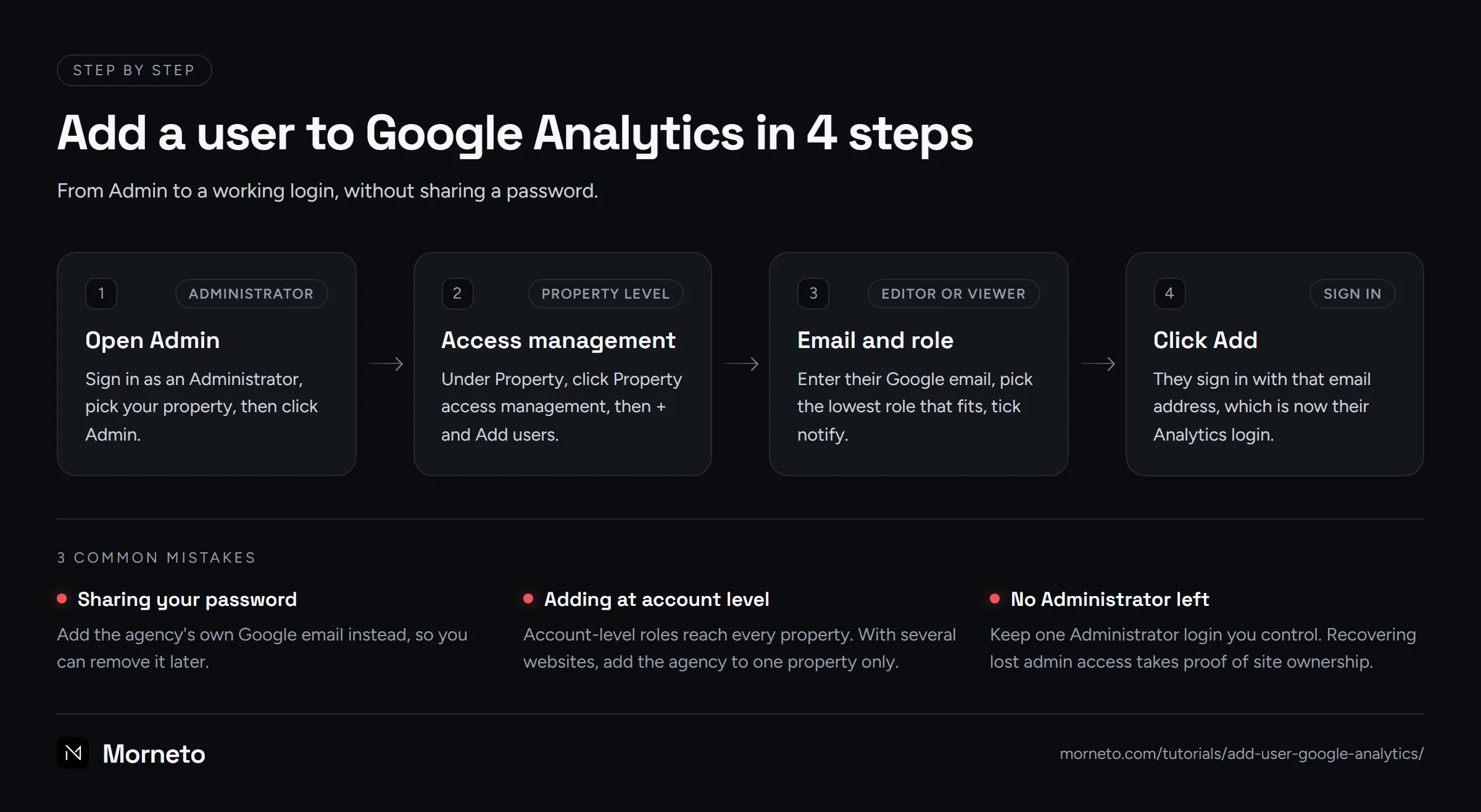
If you do not see the “+” button, you probably lack the Administrator role at this level. In that case, ask the current Administrator to add the person for you. And if your screen looks different, ask us and tell us what you see.
Which Google Analytics role should your agency get?
Google Analytics has five roles, and higher roles build on lower ones. Administrator includes Editor, Editor and Marketer both include Analyst, and Analyst includes Viewer. So pick the lowest role that still fits the job.
| Role or restriction | What it allows | Good fit for |
|---|---|---|
| Administrator | Full control of Analytics, including users. | You, the owner. An agency only if it must add people. |
| Editor | Full control of settings at the property level, but no user management. | An agency that sets up tracking, events and key events. |
| Marketer | Creates, edits and deletes audiences, events and key events. | An agency that runs your ads. |
| Analyst | Everything a Viewer can do, plus sharing explorations. | A freelancer who builds reports. |
| Viewer | Sees settings and data. Builds personal explorations only. | Someone who only reads reports. |
| No Cost Metrics | Data restriction: hides cost metrics such as ad cost and ROAS (reports show 0). | Anyone who should not see ad spend. |
| No Revenue Metrics | Data restriction: hides revenue metrics such as revenue and LTV (reports show 0). | Anyone who should not see sales figures. |
Our practical advice: most agencies that set up tracking need Editor, while Viewer is enough for reporting only. That advice follows Google’s role descriptions, so treat it as a guideline, not a Google rule.
One more case. If the agency will connect Google Ads to Analytics, Google asks for Editor or Administrator on the property, plus admin access in Google Ads. For that part, our tutorial on how to give an agency access to Google Ads also helps.
Account level or property level: which is safer?
Access in Google Analytics works on two levels. An account can hold several properties, and each property usually tracks one website or app. So where you add the person decides how much they see.
- Property level gives access to that one property only. This is the safer choice if you run more than one website or brand.
- Account level gives the same role on every property in the account, because roles flow down from the account to each property.
Note that the most generous role always wins. You can give someone a higher role on one property than they have on the account, but not a lower one. Instead, change the account-level role first if you want to lower it. The same goes for data restrictions: you cannot lift a restriction on a property when it comes from the account.
What does the other person have to do?
Very little. Google’s help pages describe no invitation and no acceptance step, so the person only has to sign in.
- Go to analytics.google.com and sign in with the exact email address you added.
- Open the account and property selector at the top left and pick your property.
- Then check that the reports load. If a cost or revenue metric shows 0, that may be a data restriction, not a tracking error.
If you did not tick “Notify new users by email”, they get no message at all, so tell them yourself. And if their address is not a Google Account yet, they first create one for that address. After that, you add them again.
How do you remove a user from Google Analytics?
Take access back when a project ends or an agency leaves. Google says you can delete users only at the account level, and that needs the Administrator role on the account.
- Click “Admin”. Then open the list where you added the person: “Account access management” under “Account”, or “Property access management” under “Property”. Some screens show one item called “Access Management”.
- Then use the search box to find the person.
- Select the check box next to their name and click “Remove”.
To lower a role instead, click the person’s name, change the role and click “Save”. Keep in mind that the last Administrator cannot delete themselves. So always keep one Administrator login that you, the owner, control. Otherwise, Google first asks you to prove you own the website, for example with an analytics.txt file, before support can help.
What goes wrong most often?
- Sharing a password. Add the agency’s own email address instead, so you can remove them later and every change traces back to them. That is also why a good agency, Morneto included, never asks for your password.
- Too much reach. Account level covers every property. So with several websites, add the agency at property level only.
- Old guides that mention Views. Those steps are for Universal Analytics, while GA4 sets access only on accounts and properties.
Many agencies ask for Search Console access at the same time. Our tutorial on sharing Search Console with your agency follows the same idea, so you can do both in one sitting.
Sources
Where these steps come from
Checked on October 13, 2026 against the official help pages below.
- Add, edit, and delete Analytics users and user groups – Analytics Help
- [GA4] Access and data-restriction management – Analytics Help
- [GA4] Find your way around Analytics – Analytics Help
- [GA4] Request access to Analytics – Analytics Help
- Connect Google Ads to Google Analytics – Analytics Help
- No one has administrative access – Analytics Help
More tutorials
 Guide · 5 min
Google Business Profile
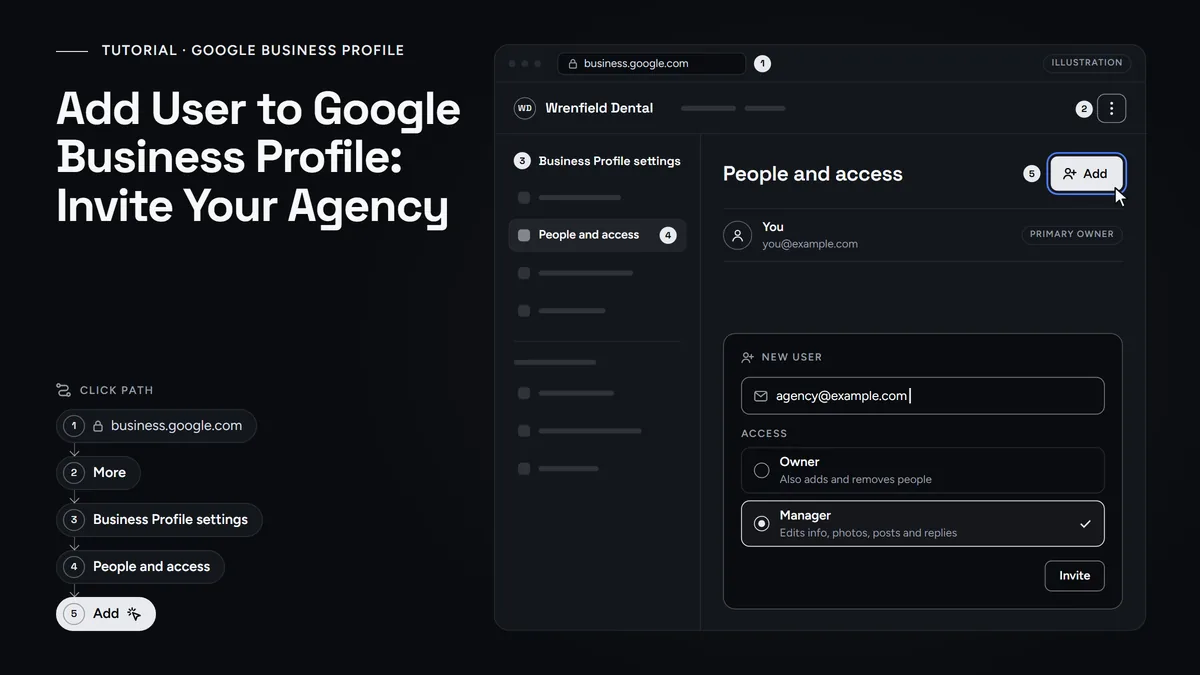
Add a user to Google Business Profile
Invite your agency or staff as a Manager, pick the right role, keep primary ownership and remove access when the work ends.
Read the guide- Guide · 5 min
Google Ads
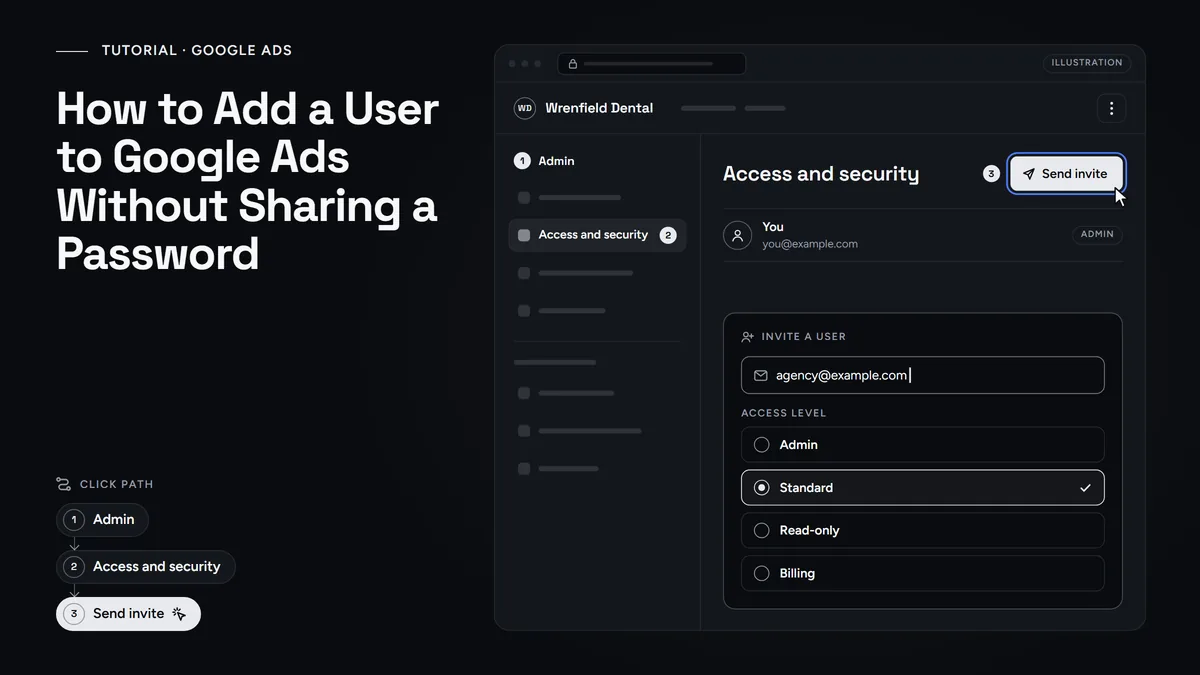
How to Add a User to Google Ads
Give your agency access without sharing a password. Accept their manager link or invite them with the right access level, and keep your account and billing.
Read the guide - Guide · 5 min
Analytics
How to Add a User to Google Search Console
Give your agency Full access under Settings, Users and permissions. See which level to pick, how to remove it later, and why you stay the owner.
Read the guide
Questions
Common questions
Can I add a user to Google Analytics without the Administrator role?
No. Only an Administrator can add or change users. If you do not see Add users, ask the person who set up your GA4 property to make you an Administrator, or to add the other person for you.
Does a new Google Analytics user have to accept an invitation?
No. Google’s help pages describe no acceptance step. Google says the email address you add, with its password, becomes that person’s Analytics login. So they sign in at analytics.google.com and pick your property in the selector at the top left.
Can I add someone whose work email is not a Gmail address?
Yes, as long as that address belongs to a Google Account. Google Workspace addresses also work. If there is no Google Account yet, the person creates one for that address first.
How do I take access away from a former agency?
Go to Admin, open Account access management or Property access management, find the person, tick the check box and click Remove. Google says you need the Administrator role at the account level to delete users.
Can I hide ad spend or revenue from a user?
Yes. Add the data restriction No Cost Metrics or No Revenue Metrics when you pick the role. That person then sees 0 for those metrics in reports. The metrics are also left out of explorations, so tell them why.
Need a hand?
Rather have us check it with you?
Send us a message through the contact page and we will walk you through it on a short call. You keep ownership of every account, and we never ask for your password.