How to Add a User to Google Ads Without Sharing a Password
Add a user to Google Ads in a few minutes, so your agency can run your campaigns. Accept their manager link or invite them, pick the right access level, and keep your account and billing.
Step-by-step guide · about 5 minutes · checked October 13, 2026
Step by step
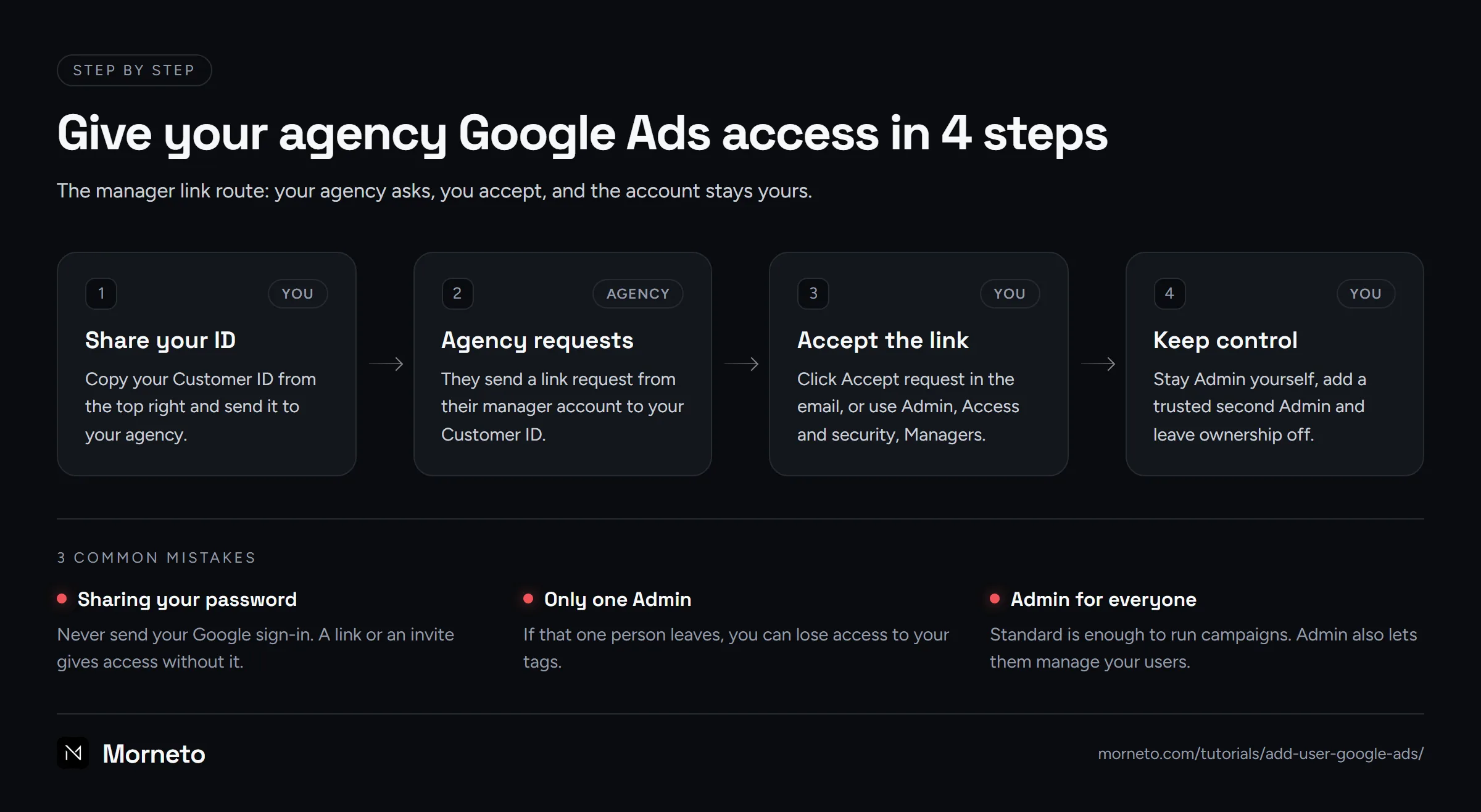
Short answer: There are two safe ways to add a user to Google Ads for your agency. First, your agency sends a link request from its manager account, and you accept it. Second, you invite them yourself under Admin, then Access and security, usually with Standard access. Either way, you keep your account and never share your password.
What do you need before you add a user to Google Ads?
It takes about five minutes. However, check these points first, because Google only lets certain people give access.
- Admin access to your account. Only an Admin can accept a link request, change access levels or invite users with more than email-only access.
- Your Customer ID. Your agency needs it to send a link request. It sits in the top right corner of Google Ads.
- The right email address. For a user invite, ask your agency which address to use.
- A computer. These steps follow Google Ads in a web browser, because the mobile app can look different.
- A second Admin you trust. For example, a co-owner, so you never depend on one person.
How do you accept your agency’s manager link?
Google built manager accounts for agencies that run several client accounts. So your agency may ask for this route first. Even so, you stay in charge of your account.
- Sign in to Google Ads and click your profile picture in the top right corner. Your Customer ID then shows under your account name. Copy it and send it to your agency.
- After that, your agency sends a link request from its manager account. Google then emails everyone with Admin access on your account.
- Open that email and click “Accept request”. That is the quickest way.
- No email? Then click the “Admin” icon in the menu and select “Access and security”.
- Select the “Managers” tab. The request from your agency appears under “Link request”.
- In the “Actions” column, select “Accept” and follow the steps on the screen. Google then links the accounts automatically.
Linking does not move your account. It looks the same, you sign in the same way, and your history stays intact. Also, your invoicing and payment method stay the same, unless you choose to set up consolidated billing.
How do you add a user to Google Ads by email?
Some agencies ask you to add them as a user in Google Ads instead. For example, they may work without a manager account. You can also use this route for a freelancer or a colleague.
Chapters: 0:00 Intro · 0:09 Google Business Profile · 0:31 Google Ads · Watch on YouTube
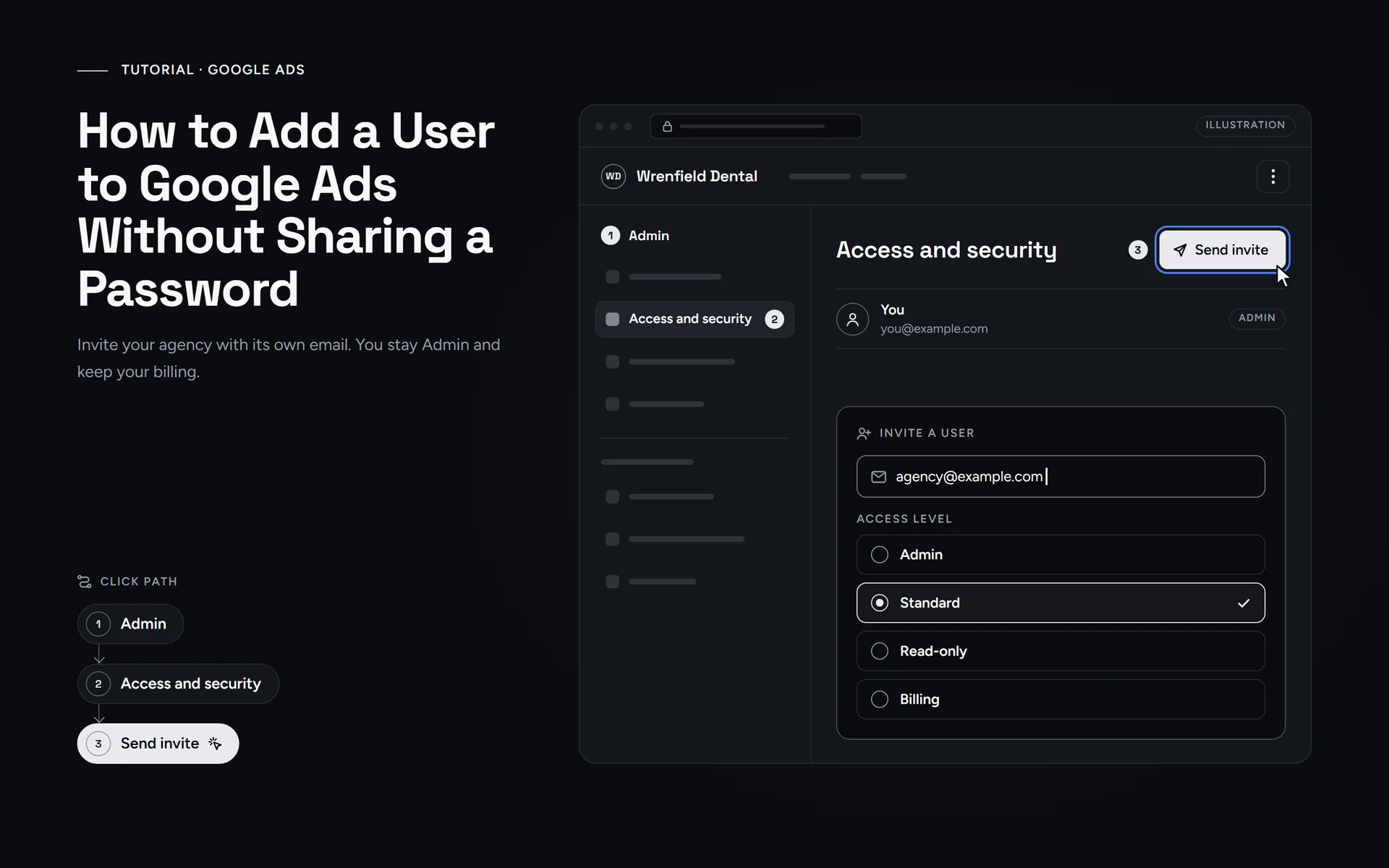
- Sign in to Google Ads and click the “Admin” icon.
- Select “Access and security”.
- Click the plus button.
- Enter the email address of the person you want to invite.
- Choose an access level. For example, “Standard” is enough for most agencies.
- Click “Send invitation”.
Changed your mind before they accept? Then click “Revoke” in the “Actions” column next to the pending invitation.
Which access level should a new Google Ads user get?
When you invite a person, you choose one of five access levels. A manager link works differently, because it connects two accounts. This table follows Google’s overview of access levels.
| Access level | What it can do | Good for |
|---|---|---|
| Admin | Everything, including inviting users, changing access levels, managing manager links and adding product links. | You and one person you trust |
| Standard | View and edit campaigns, edit billing information and run reports. It can grant email-only access, but it cannot give wider access, change access levels or add product links. | An agency or freelancer that runs your ads |
| Read-only | View campaigns, billing and users, and run reports. It cannot edit campaigns or billing. | An advisor, or an expert you are still testing |
| Email-only | Receive notification emails and reports. Nothing else. | Someone who only wants the reports |
| Billing | View and edit billing information and make payments. No campaigns or users. | Your bookkeeper |
In general, “Standard” is the right choice for an agency you invite as a user. They can build and change campaigns, but they cannot give account access, change access levels or remove users. Instead, keep “Admin” for yourself and a second person you trust. Standard users also cannot add product links, such as a link to Google Analytics. So do that step together, after you give your agency Analytics access.
On the “Managers” tab you also see an “Owner” column. A manager that links to an existing account is not the owner by default. If you set it to “Yes”, the agency’s admins can invite and remove your users and unlink other managers. Only one manager can own an account. However, you can always unlink it. So unless you have a clear reason, leave ownership off.
What does your agency have to do?
That depends on the route you chose. Either way, the work on their side is short.
- Manager link: the agency signs in to its manager account, clicks the Accounts icon and opens “Sub-account settings”. Then they click the plus button, choose “Link existing account”, enter your Customer ID, select “Preview” and then “Send Request”.
- User invite: the person clicks the link in your invitation email and follows the steps. They need a Google Account, but it can use a work email address instead of Gmail.
Neither route needs your password. So if anyone asks for your Google sign-in, don’t share it. A good team for Google Ads management in New York works inside your account and leaves you in control. Still choosing who to hire? Our guide on how to hire a Google Ads expert lists five questions to ask first.
How do you remove a user or agency from Google Ads later?
You can end access at any time, and you don’t need your agency’s permission. However, check your billing setup first. If your agency’s manager account pays your monthly invoice, your ads stop running after you unlink. So change the billing setup before you unlink. For a manager link, follow these steps.
- Click the “Admin” icon and select “Access and security”.
- Select the “Managers” tab.
- Find the manager account of your agency and select “Remove access” in the “Actions” column.
- Check the preview of what changes, then select “Unlink”.
For a person you invited, open “Access and security”, find that user and select “Remove access” in the “Actions” column.
After you unlink, your campaigns and their history stay in your account. However, remarketing lists or conversion tracking that ran through the agency’s manager account can stop working. So check those settings afterward.
What should you watch out for?
- No Accept button? You probably don’t have Admin access, for example Standard, Read-only, Billing or Email-only. In that case, ask an Admin on your account to accept the request.
- Only one Admin is risky. Google warns that with a single administrator you may lose access to your tags. So add a second Admin before you hand over your campaigns.
- More than 3 Admins? Then a second Admin must approve adding or removing a user. The same goes for changing an access level or linking a manager account. Also, these requests expire after 20 days.
- Up to 5 managers. An account can have at most 5 manager accounts linked directly. If you or your agency get the error “You have reached the maximum number of managers”, unlink an old agency first.
- An old account from a former agency? If they set it up in their own name, getting it back can be hard. Our article on old AdWords accounts explains when to repair an account and when to start over.
Sources
Where these steps come from
Checked on October 13, 2026 against the official help pages below.
- Manage access to your Google Ads account
- About access levels in your Google Ads account
- Find your Google Ads customer ID
- About Google Ads manager accounts
- Link accounts to your manager accounts
- About linking accounts to your manager account
- About ownership of client accounts
- Unlink accounts from your manager account
- About unlinking accounts from your manager account
- About manager linking and unlinking errors
- Multi-party approval for account changes
- Create a Google Account
More tutorials
 Guide · 5 min
Google Business Profile
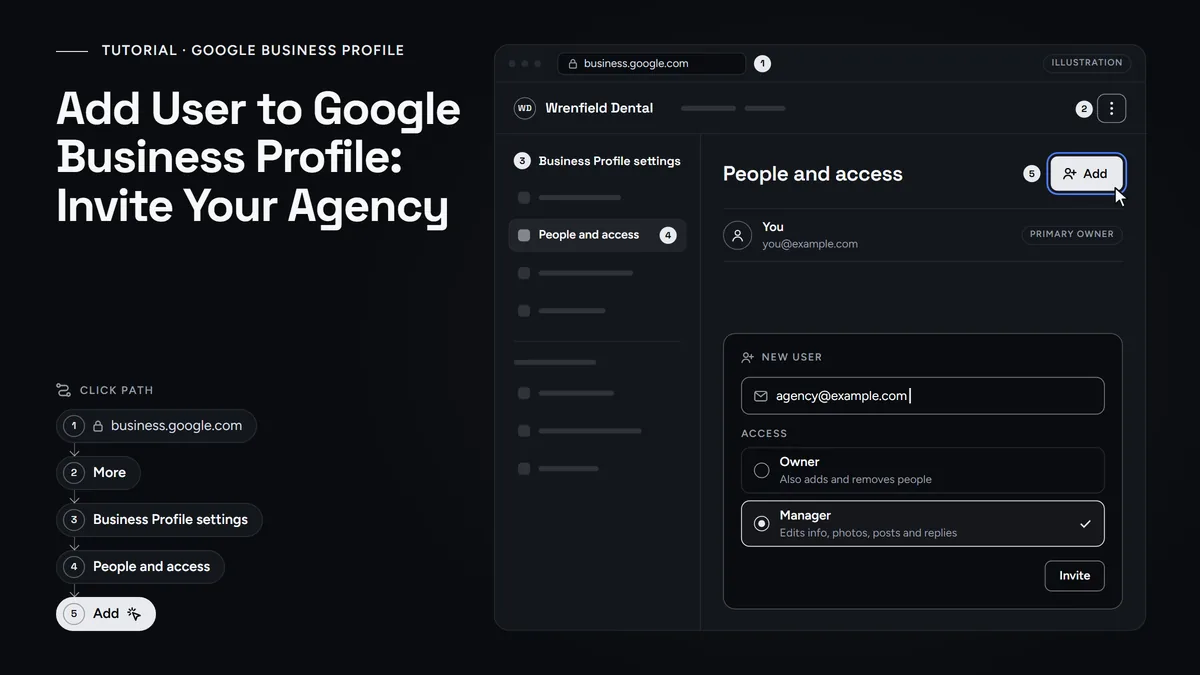
Add a user to Google Business Profile
Invite your agency or staff as a Manager, pick the right role, keep primary ownership and remove access when the work ends.
Read the guide- Guide · 6 min
Analytics
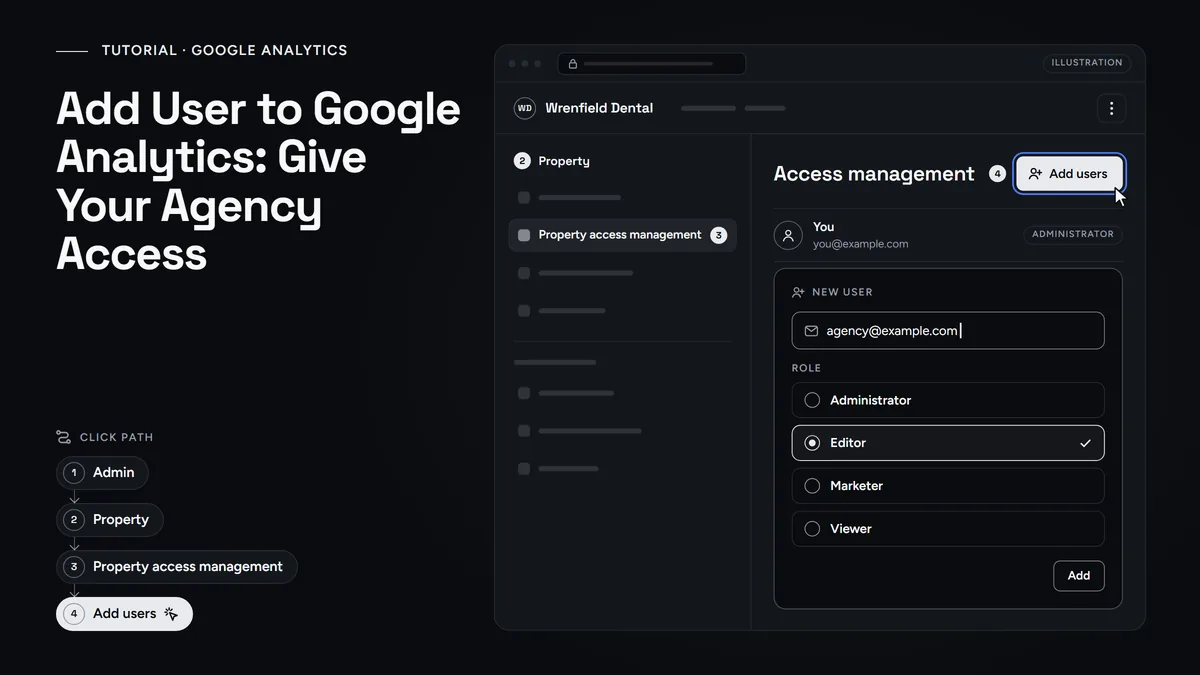
Add a user to Google Analytics
Give your agency its own GA4 login: the Admin path, which role to pick and how to remove access later. No password sharing.
Read the guide - Guide · 5 min
Analytics
How to Add a User to Google Search Console
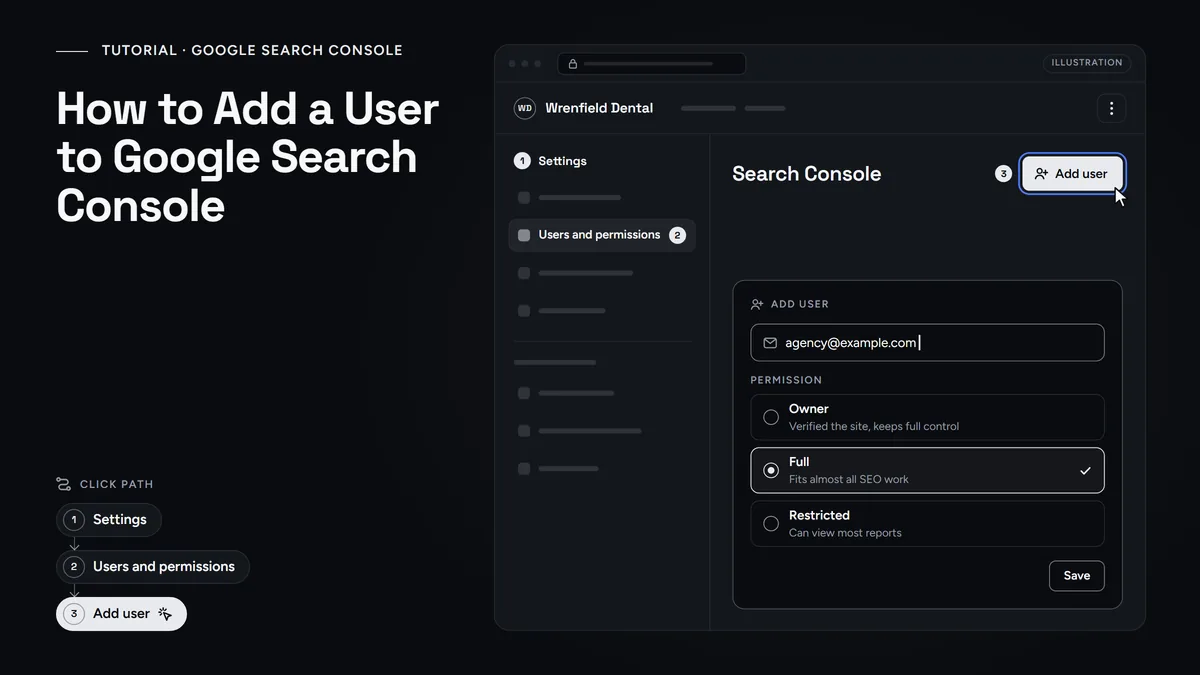
Give your agency Full access under Settings, Users and permissions. See which level to pick, how to remove it later, and why you stay the owner.
Read the guide
Questions
Common questions
Do I have to give my agency my Google password?
No. A manager link or a user invite gives your agency its own access, so nobody needs your password. Your account also keeps the same sign-in as before. Likewise, at Morneto we never ask a client for a password.
Can I add a user to Google Ads who has no Gmail address?
Yes. The person needs a Google Account, but that account can use any email address, such as a work address. They accept by clicking the link in your invitation email and following the steps.
Who pays for the ads after I link my agency?
Nothing changes on the billing side. Google says invoicing and payment methods stay the same after linking, unless you choose to set up consolidated billing.
Can I change the access level of a Google Ads user later?
Yes. Go to Admin, then Access and security, and hover over the user’s access level in the Access level column. Then click the arrow that appears and choose the new level. Only an Admin can do this.
What happens to my campaigns if I remove my agency?
Your campaigns and their history stay in your account, and the agency loses access. However, if your agency’s manager account pays your monthly invoice, your ads stop running after you unlink. So change your billing setup first. Remarketing lists and conversion tracking that ran through their manager account can also stop working, so check those afterward.
Need a hand?
Rather have us check it with you?
Send us a message through the contact page and we will walk you through it on a short call. You keep ownership of every account, and we never ask for your password.