Add User to Google Business Profile: Invite Your Agency as a Manager
Give your agency or a staff member their own login. This guide shows how to add a user to Google Business Profile, pick the right role and remove access later. You stay in charge, and nobody needs your password.
Step-by-step guide · about 5 minutes · checked October 13, 2026
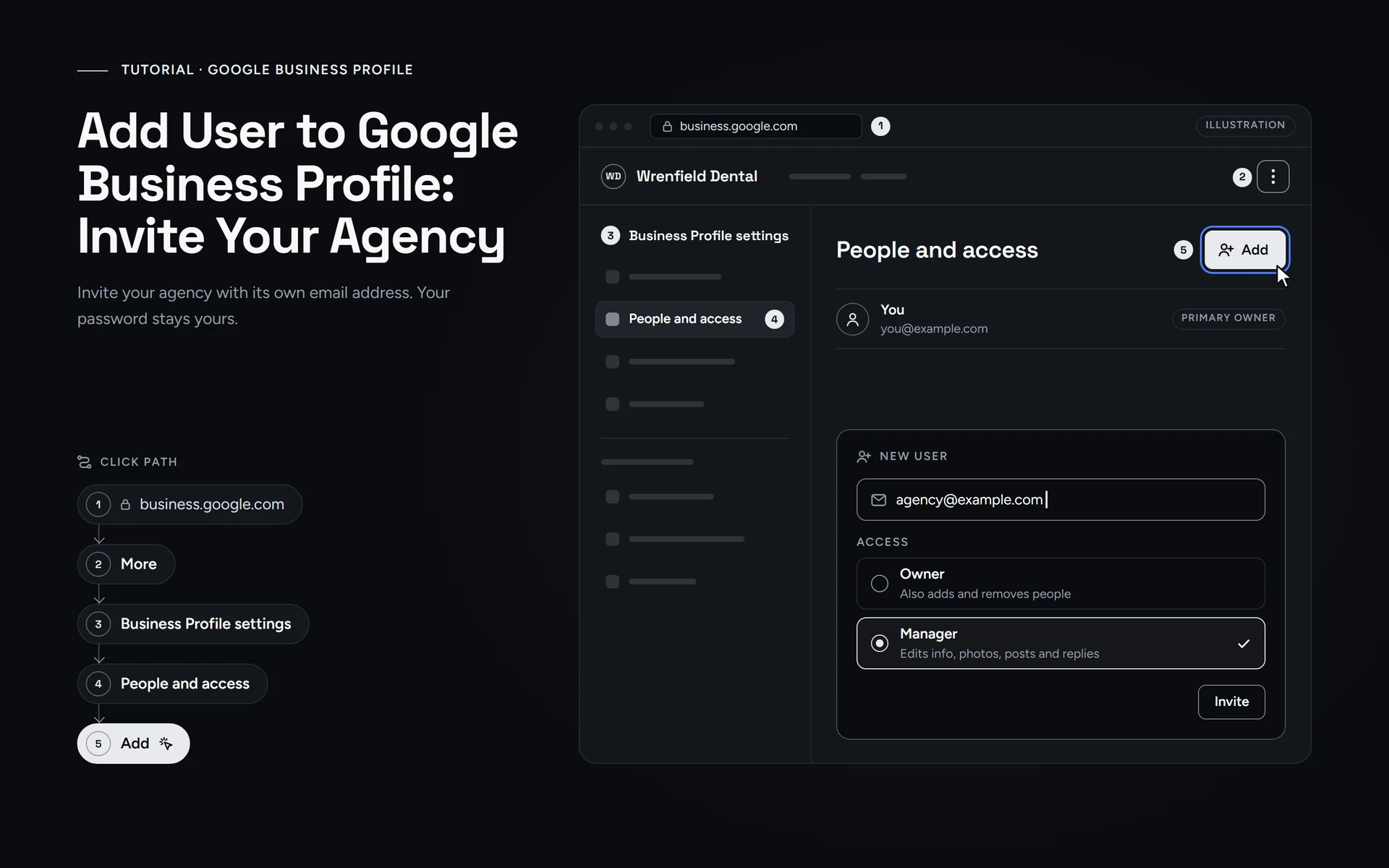
Step by step
Short answer: To add user to Google Business Profile, sign in at business.google.com (easiest on a computer). Then select More, Business Profile settings and People and access. Select Add, enter their email, choose Manager under Access and select Invite. Keep primary ownership yourself, and never share your password.
What do you need before you start?
You need three things. Also, use a computer if you can: Google’s steps start at business.google.com.
- Owner access. Only owners can add, remove or change users. If you are a manager, ask an owner to do it or to make you an owner.
- The right Google Account. Sign in with the account that owns the profile. Otherwise, business.google.com and a search for “my business” won’t show it.
- Their email address. It must belong to a Google Account, but it doesn’t have to be a Gmail address. So ask your agency which address to use.
Verification is a separate job. If you haven’t verified your profile yet, our guide to verifying your Business Profile covers that first step.
How do you add a user to Google Business Profile?
These steps follow Google’s help page on owners and managers, checked on October 13, 2026. Google has two roles you can invite, Owner and Manager. For an agency we recommend Manager, so this is also how you add a manager.
Chapters: 0:00 Intro · 0:09 Google Business Profile · 0:31 Google Ads · Watch on YouTube
- First, sign in to the Google Account that owns your Business Profile. Then go to business.google.com, which is easiest on a computer. You can also search Google for “my business”. If you manage more than one business, pick the right one.
- On your profile, select “More”, then “Business Profile settings”, then “People and access”.
- At the top left, select “Add”.
- Enter the email address of the person you want to invite. For an agency, use the exact address they gave you.
- Under “Access”, choose “Manager”. That covers almost all agency work. Pick “Owner” only if they also need to add or remove people.
- Select “Invite”. After that, the person appears under “PENDING” on the People and access page until they accept.
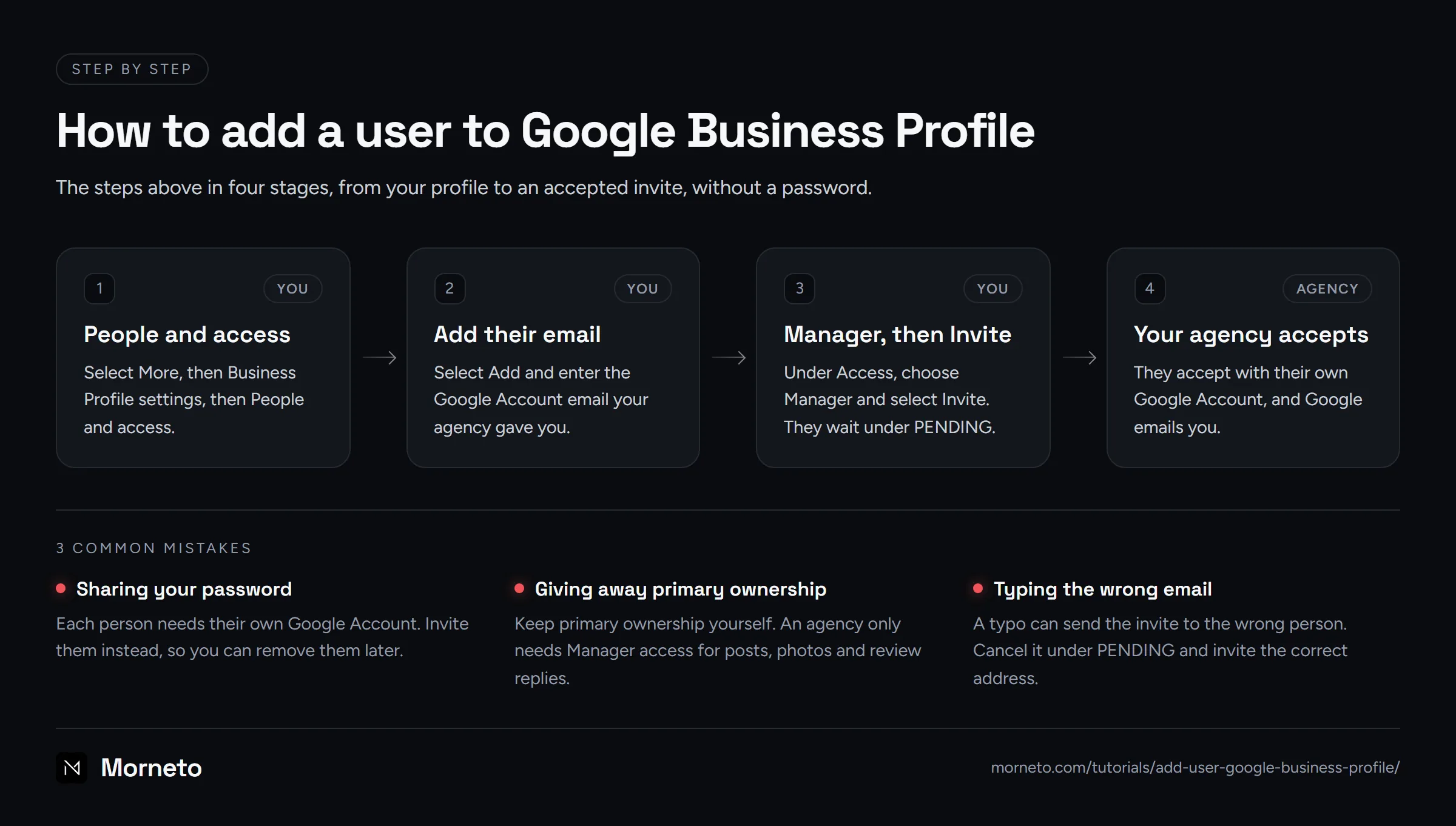
Next, tell your agency the invite is on its way. Google emails you once they accept, and they can start right away with their own login.
Which Google Business Profile role should your agency get?
Before you add a user to Google Business Profile, decide how much power they need. A profile can have several owners and managers, but only one primary owner.
| Role | How many | What they can do | Who should have it |
|---|---|---|---|
| Primary owner | One per profile | Everything an owner can do, plus transfer primary ownership | You, the business owner |
| Owner | Several allowed | Full control, including adding and removing users and removing the profile | A co-owner or partner you trust |
| Manager | Several allowed | Edit info, hours, photos and posts, reply to reviews, link Google Ads. Can’t add or remove users or remove the profile | Your agency, staff or a freelancer |
Our advice: give an agency Manager access. It covers the daily work, such as posts, photos and review replies. Owner adds the power to add and remove people, and that power should stay with your business.
The same goes for ongoing Google Business Profile optimization after your agency starts. Manager access covers the usual tasks, and you stay the primary owner.
What does your agency have to do to accept?
After you add a user to Google Business Profile, they need their own Google Account. Google says invited users can accept and start right away. However, its help page doesn’t describe the invite or name the accept button.
In practice, they sign in to their Google Account and accept the invitation. If they can’t find it, ask them to confirm the address. You can see it under “PENDING” on People and access.
Some agencies use an organization account in Business Profile Manager. In that case, they give you their business group ID, and you invite that business group. Then they open “Manage invites” and select “Approve” on your invitation.
New owners and managers face a 7-day waiting period. In that first week, they get an error if they try to delete or undelete the profile. The same goes for removing other owners or managers, or transferring primary ownership.
Should you ever transfer primary ownership?
Not to an agency. Only the primary owner can transfer primary ownership, so keep that role yourself. If an agency holds it, you depend on them to give it back.
A transfer makes sense when you sell the business or a partner takes over. The new primary owner must already be an owner or manager on the profile. Then follow these steps:
- Go to your Business Profile and select “More”, then “Business Profile settings”, then “People and access”.
- Select the person who should become primary owner.
- Next to “Access”, select “Edit”.
- Choose “Primary owner” and select “Save”.
Google doesn’t say what happens to your own role after a transfer. So check People and access afterward, and remove yourself only if that is the plan.
How do you remove a user from your Business Profile later?
When a project ends or you switch agencies, remove the old access the same day. You can also lower someone’s role instead of removing them.
- Open your profile and select “More”, then “Business Profile settings”, then “People and access”.
- Select the person whose access you want to change.
- To change their role, select “Edit” next to “Access”, pick the new role and select “Save”.
- To remove them, select “Remove person”.
The person gets an email and loses access. Their review replies, posts and other changes stay on your profile, though. If the invite is still pending, find them under “PENDING” and select “Cancel invitation” instead.
Other users can also leave on their own. They select themselves on People and access, then “Stop managing” and “Confirm”. The primary owner can’t, until primary ownership moves to someone else.
What should you know before you share Google Business Profile access?
- Never share your password. Whenever you add a user to Google Business Profile, invite their own Google Account. Then you can remove one person without changing your own login. Morneto never asks for a client’s password.
- Google Groups don’t work. You can’t add a Google Group as an owner or manager, so invite individual accounts.
- A typo can send the invite to the wrong person. So check the address under “PENDING”. If it is wrong, select “Cancel invitation” right away and invite the correct address.
- Old guides use old names. Older guides call managers “site managers”. Today, Google uses People and access, with the roles Owner and Manager.
- On a phone? In the Google Maps app, “Business” at the bottom right opens your profile. However, Google’s access steps start at business.google.com, so a computer is the easiest route.
- Several locations? In Business Profile Manager, group access lives under “Group settings” and “Manage users”. An invite to one profile doesn’t include the whole group.
Once your agency is in, the real work starts. For example, our Google review link tutorial shows how to ask for reviews within Google’s rules.
Sources
Where these steps come from
Checked on October 13, 2026 against the official help pages below.
- Manage your Business Profile owners & managers – Google Business Profile Help
- Transfer primary ownership of a Business Profile – Google Business Profile Help
- Manage agency invites – Google Business Profile Help
- Manage business group owners & managers – Google Business Profile Help
- Find your business on Google – Google Business Profile Help
- Create a Google Account – Google Account Help
More tutorials
 Video · 3:15
Google Business Profile
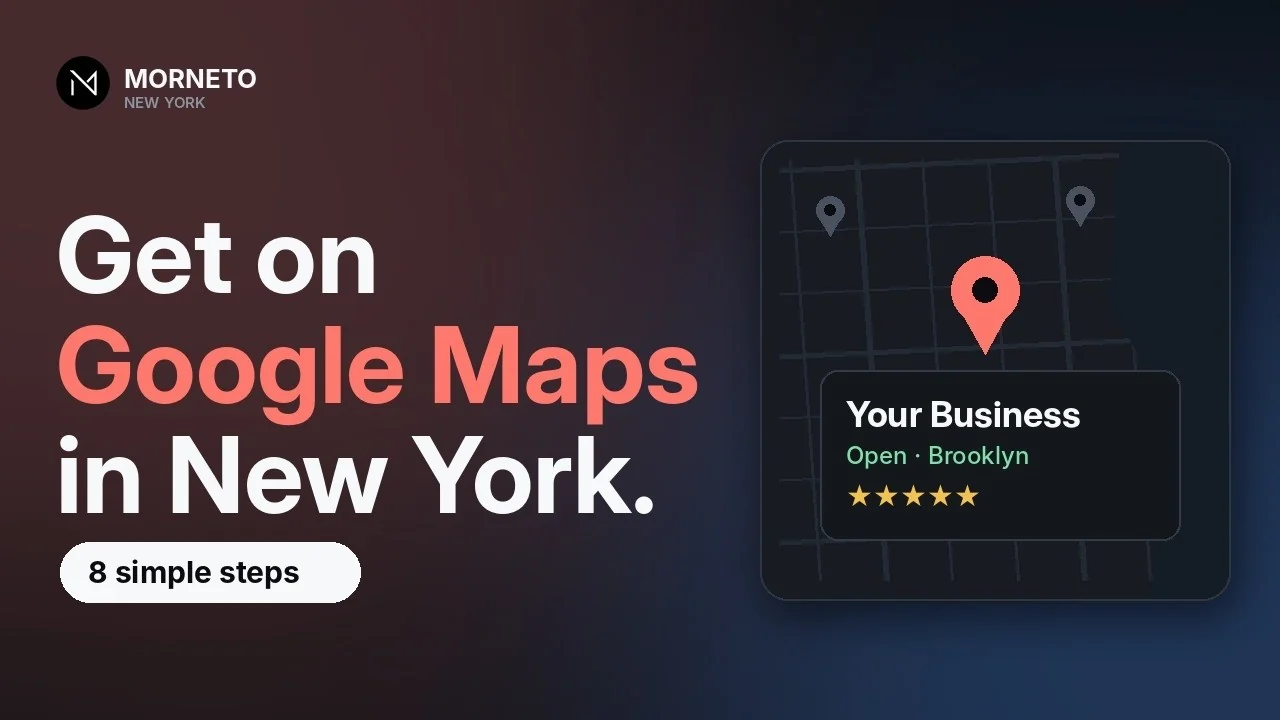
How to get your business on Google Maps
Create a free Google Business Profile, verify it and fill it out. Eight steps from our 3-minute video, plus three mistakes that can get a profile suspended.
Watch the tutorial- Guide · 5 min
Google Business Profile
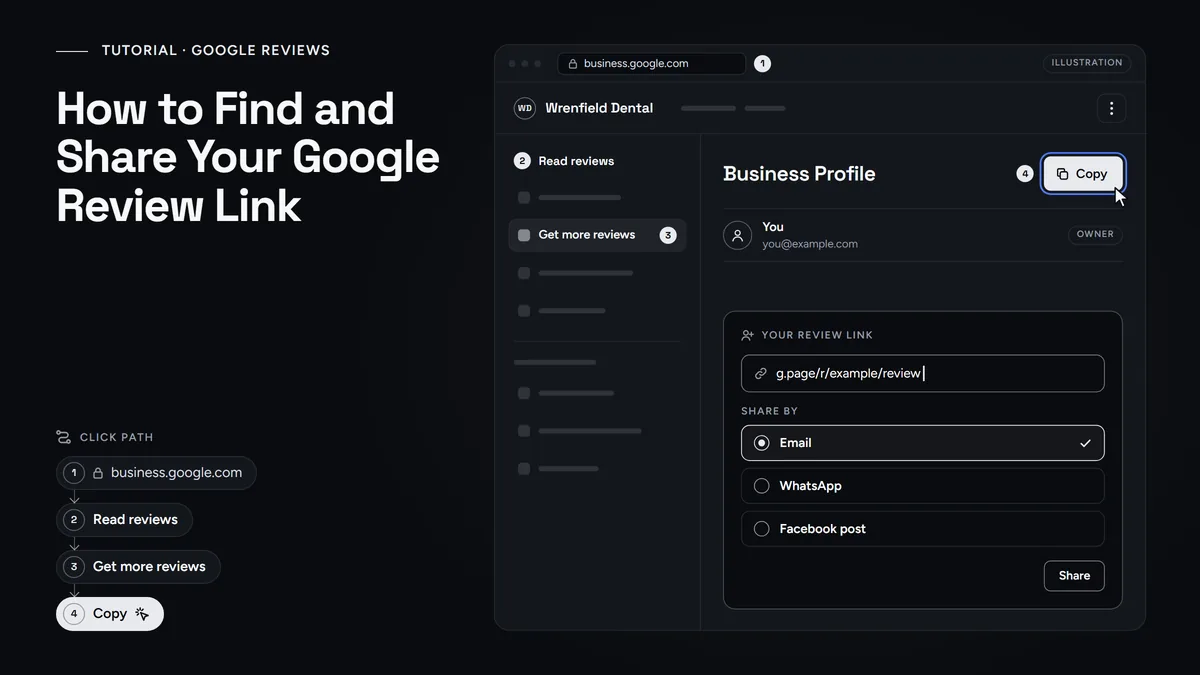
Find and Share Your Google Review Link
Copy the link and QR code Google makes for your Business Profile, then share it with every customer without breaking Google's review rules.
Read the guide - Guide · 5 min
Google Ads
How to Add a User to Google Ads
Give your agency access without sharing a password. Accept their manager link or invite them with the right access level, and keep your account and billing.
Read the guide
Questions
Common questions
Can I add a user to Google Business Profile from my phone?
Google’s help page doesn’t split these steps by device, and its steps start at business.google.com. The Google Maps app can open your profile with Business at the bottom right. For adding or removing people, we recommend a computer and business.google.com.
Should my agency be an owner or a manager?
Manager, in almost every case. A manager can edit your info, photos and posts, reply to reviews and link Google Ads. Only owners can add or remove people and remove the profile, so keep that power with your business.
Why does Google show an error when I transfer primary ownership?
Most likely because of the 7-day waiting period. If you became an owner or manager less than 7 days ago, Google can block the transfer with an error. Also check that you are the primary owner, because only the primary owner can transfer it.
What happens to my agency's work after I remove them?
They get an email and lose access. However, their review replies, posts and other changes stay on your Business Profile. So if you switch agencies, invite the new one before you remove the old one.
Will Morneto ask for my Google password?
No. We never ask for a client’s password. You invite our own Google Account, you stay the primary owner, and you can remove us whenever you want.
Need a hand?
Rather have us check it with you?
Send us a message through the contact page and we will walk you through it on a short call. You keep ownership of every account, and we never ask for your password.