How to Find and Share Your Google Review Link
Your Google review link takes customers straight to the review form. Here is how to copy it, get the QR code and share it after every real job.
Step-by-step guide · about 5 minutes · checked October 13, 2026
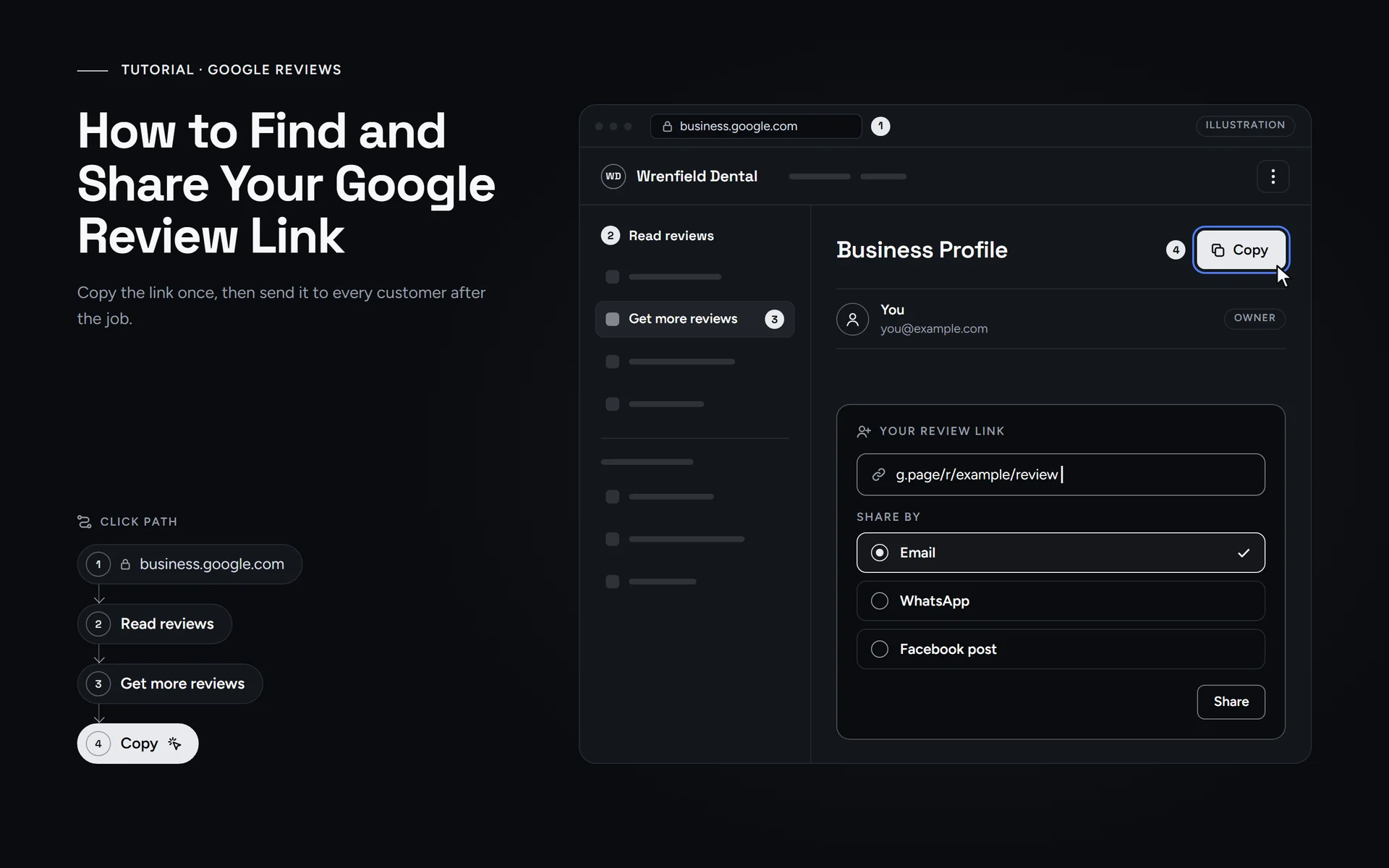
Step by step
Short answer: Your Google review link lives in your Business Profile. On a computer, go to business.google.com, select “Read reviews” and then “Get more reviews”. Next, select “Copy” for the link, or save the QR code. Then send that same link to every customer after a real visit, and never offer anything in return.
What do you need before you start?
Getting the link takes about two minutes. However, check these three things first.
- A computer. Google says you can currently only create review QR codes in a computer browser, not on a mobile device.
- The right Google Account. To manage your profile, you need to sign in to the Google Account that is linked to it. So use the account that is an owner or manager of your Business Profile.
- A verified profile. Google’s review link article does not mention verification. However, you must verify your business before you can reply to reviews. Our guide to Business Profile verification explains the options.
How do you get your Google review link?
To get your Google review link, follow Google’s own help page, Create a Google link or QR code to request reviews. The labels below match Google’s help pages as of October 13, 2026.
- On a computer, sign in to the Google Account that owns or manages your Business Profile.
- Go to business.google.com and open your profile. If you manage several profiles, pick the right location first.
- Select “Read reviews”.
- Next, select “Get more reviews”, which has a share icon. A window opens with your review link and a QR code.
- To copy the link, select “Copy”. Then paste it into a note, so you have it ready.
- To keep the QR code, right-click the image and choose “Save image as…”. After that, you can print it or add it to a receipt.
- Optional: send a request straight from the same window by email, WhatsApp message or Facebook post.
- Finally, open the link once on your own phone to see what customers will see. Just close it without posting, because owners should not review their own business.
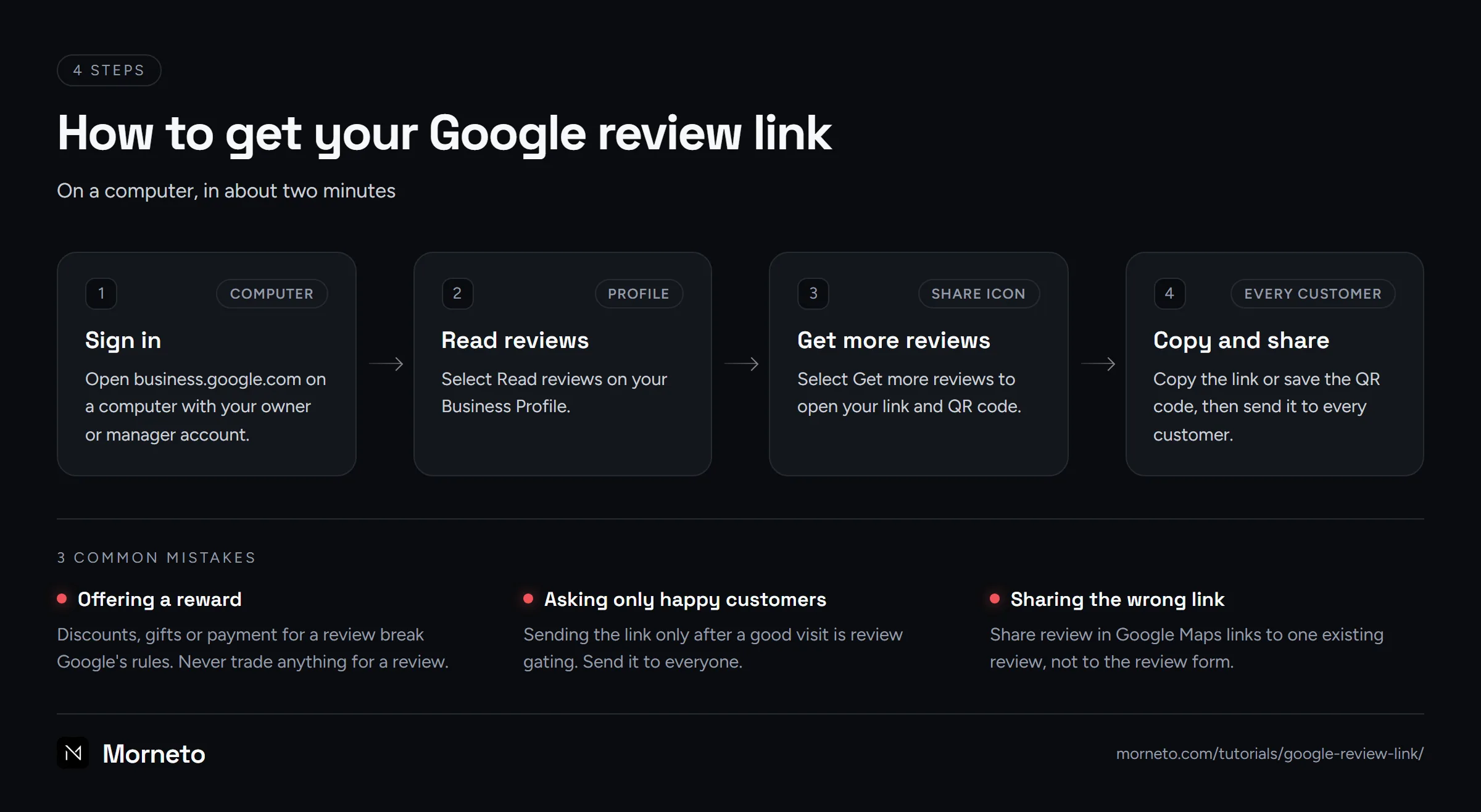
Google also lets you manage your profile on Search. In addition, the Google Maps app has a “Business” tab at the bottom right. Still, Google writes the review link steps for a computer, with a right-click and “Save image as…”. Google also says review QR codes can currently only be generated in a computer browser. So copy the link there once, and then save it on your phone.
Which role do you need for the review link?
Google’s review link page does not name a role. However, its page on owners and managers says both roles can respond to reviews. In a small business, that looks like this.
| Who | What they can do | Typical person |
|---|---|---|
| Owner, including the primary owner | Copies the link and QR code, replies to reviews, and adds or removes people. | You, the business owner |
| Manager | Copies the link and QR code and replies to reviews, but cannot add or remove people. | An office manager or your agency |
| Staff without a role | Sends the link you hand them, without signing in to your profile. | Front desk, technicians, drivers |
| Customer | Opens the link and posts a review while signed in to a Google Account. | Everyone you served |
In short, your team does not need access just to send the link. Instead, put it in their email template. If someone should also reply to reviews, add them as a manager with their own email address. You can remove them later under “More”, then “Business Profile settings”, then “People and access”. Select the person, then “Remove person”.
Where should you share your Google review link?
Send your Google review link soon after you finish the job, while the visit is still fresh. Also, use the same words and timing for every customer. For example:
- Thank-you email. Add one short line and the link at the end of your follow-up email.
- Text message. After a service call, send one friendly sentence with the link.
- Invoice or receipt. Print the QR code or the link at the bottom, next to your contact details.
- Counter or front desk. Put the printed QR code where people wait, so they can scan it later with their own phone.
- Your website. Add the link to your thank-you page or footer for returning customers.
- Chat. Similarly, end a support chat or WhatsApp conversation with the link.
You do not need a paid review link tool either. Google gives you the link and the QR code for free.
What does your customer have to do?
Very little. First, they open the link or scan the QR code with their phone camera. Next, they sign in, because Google requires a Google Account to leave a review. They can create that account with a non-Gmail address too. After that, they choose a star rating. They can also add a written review about their real experience, and then post it.
If your clients have never written a review, send them our plain guide on how to leave a Google review, which walks them through each screen.
What rules apply when you ask for reviews?
Google’s review rules are short, and they apply to every business. Keep these in mind when you share the link.
- No rewards. Google strictly prohibits discounts, free goods or services, or payment in exchange for a review. That includes rewards for changing or removing a negative one.
- No review gating. Instead, send the same link to every customer. Google’s Maps content policy forbids asking only for positive reviews or discouraging negative ones.
- Their phone, their pace. Our advice: let customers review later on their own phone and Google Account. Also, ask after each job. Google removes content posted from multiple accounts at the request of one person. It also removes unusual volumes or patterns of reviews that point to efforts to manipulate a rating.
- No pressure or targets. Never pressure people to review while they are on your premises. Google also forbids review quotas for staff.
- No reviews from your side. Owners, current or former employees, contractors and relatives should not review the business. Google treats those relationships as a conflict of interest, so leave the reviews to customers.
- The right link. In Google Maps, “Share review” links to one existing review, not to the form for a new one.
- Replies matter. Google says replies are public and help you build good relationships with customers. So answer good and bad reviews calmly.
For more ways to ask within these rules, read how to get more Google reviews without breaking Google’s rules.
Sources
Where these steps come from
Checked on October 13, 2026 against the official help pages below.
- Create a Google link or QR code to request reviews
- Share a link or QR code to request reviews (Learning Center)
- Tips to get more reviews
- Manage customer reviews
- Manage your Business Profile owners & managers
- Edit your Business Profile
- Prohibited & restricted content (Maps user-contributed content policy)
- Write reviews or ratings of places
More tutorials
 Video · 3:15
Google Business Profile
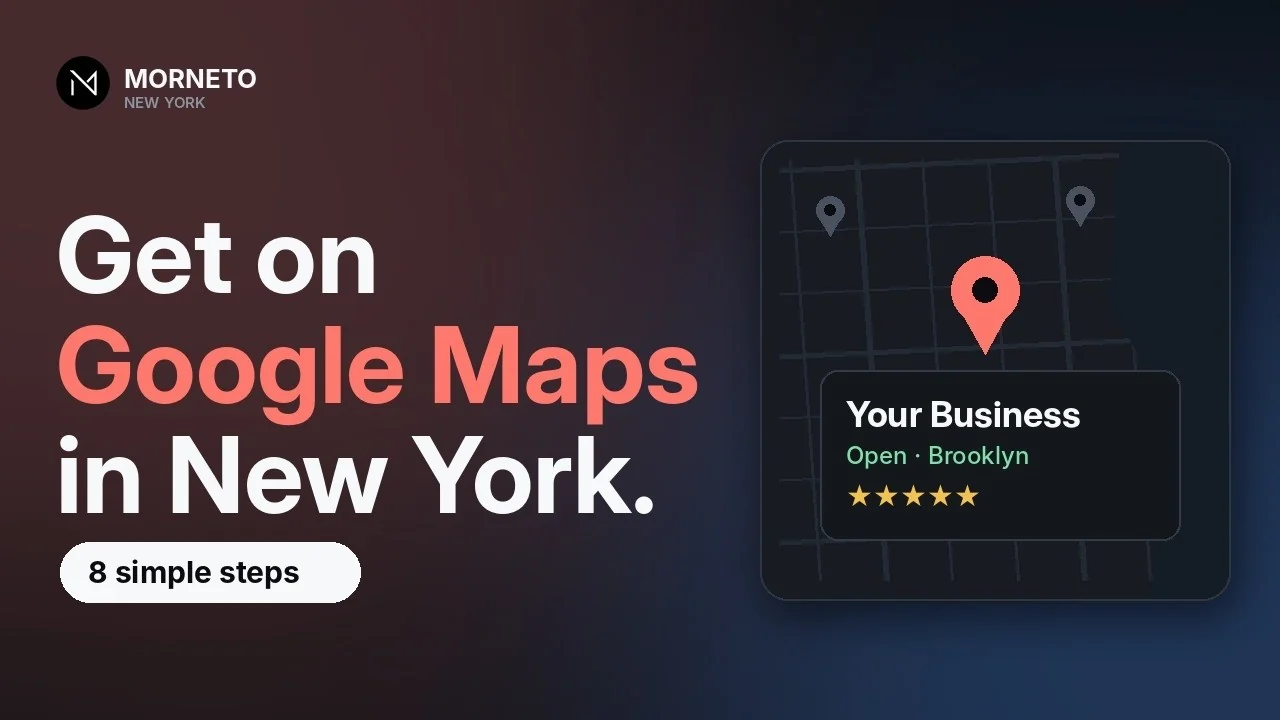
How to get your business on Google Maps
Create a free Google Business Profile, verify it and fill it out. Eight steps from our 3-minute video, plus three mistakes that can get a profile suspended.
Watch the tutorial- Guide · 5 min
Google Business Profile
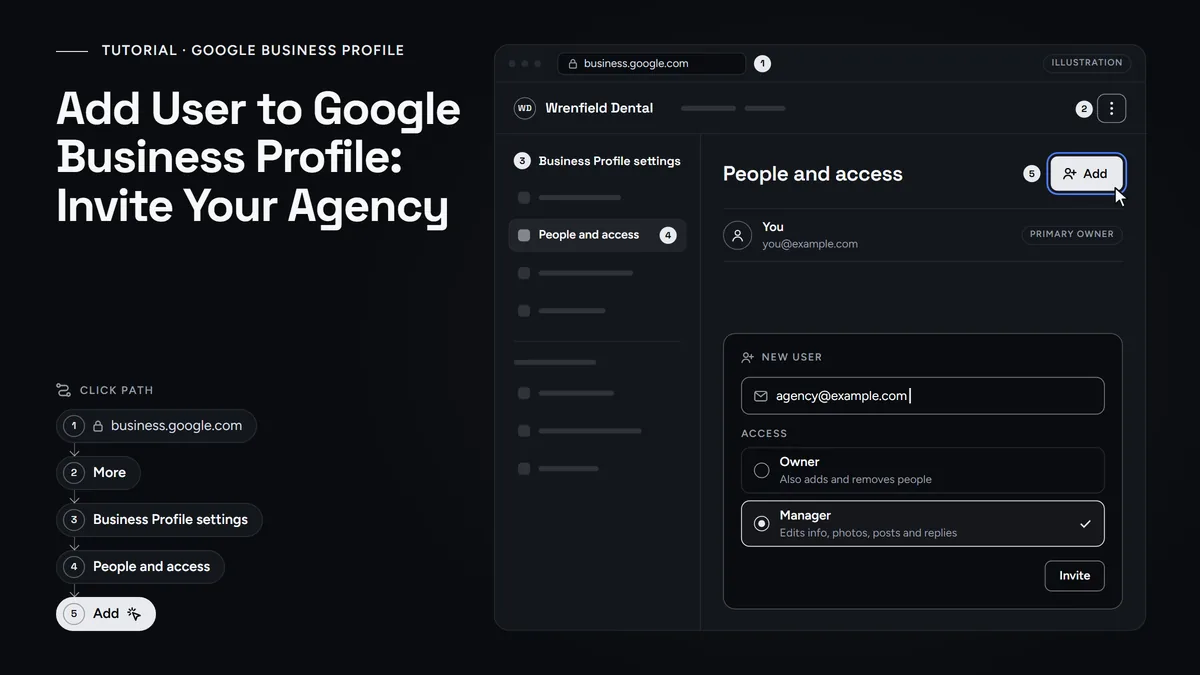
Add a user to Google Business Profile
Invite your agency or staff as a Manager, pick the right role, keep primary ownership and remove access when the work ends.
Read the guide
Questions
Common questions
Is my Google review link the same for every customer?
Yes. You copy one link from your profile and send it to everyone. That is also the fair way to ask, because Google forbids asking only happy customers. With several locations, copy the link from each location’s own profile.
Do I need a Google review link generator?
No. Google makes the link and the QR code for free in your Business Profile. A third-party generator only repeats that step. Some tools also screen out unhappy customers first, which goes against Google’s policy.
Can I get the review link on my phone?
Google’s help page writes the steps for a computer. Also, you can currently only create review QR codes in a computer browser. So copy the link there once, and then save it in a note on your phone.
Why can't my customer leave a review?
First, check that they are signed in. Google requires a Google Account to post a review, and customers can create one with a non-Gmail address. Keep in mind that reviews are only available in certain countries or regions and for certain business categories. Finally, check that you sent the link from ‘Get more reviews’, not a link to one existing review.
Can I offer a discount in exchange for a review?
No. Google treats rewards for reviews as fake engagement and strictly prohibits them. That covers discounts, free items and payments, and also rewards for changing a bad review. Instead, ask every customer the same way after a real visit.
Should I reply to the reviews I get?
Yes, once you have verified your profile, because Google requires that first. Replies are public, so keep them calm, specific and short. Also, avoid pasting the same generic thank-you under every review.
Need a hand?
Rather have us check it with you?
Send us a message through the contact page and we will walk you through it on a short call. You keep ownership of every account, and we never ask for your password.