How to Get Your Business on Google Maps in New York
Learn how to get your business on Google Maps with a free Google Business Profile. Watch the 3-minute video, then follow the eight steps and avoid three mistakes that break Google’s rules.
Video tutorial · 3:15 video plus 8 written steps · checked October 13, 2026
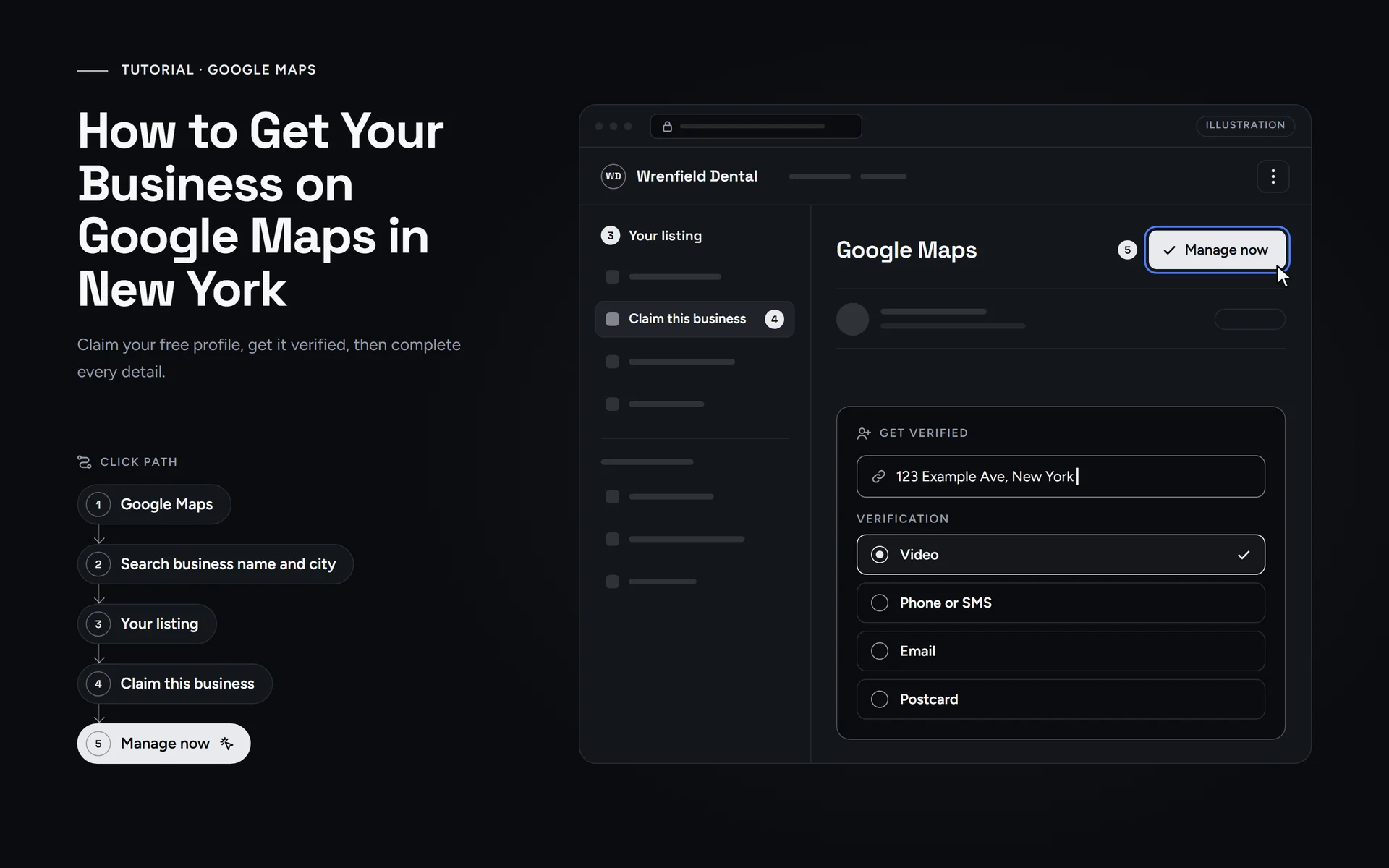
Step by step
Short answer: To get your business on Google Maps, create a free Google Business Profile and verify it. First, check that you aren’t listed already, so you don’t make a duplicate. Then fill out every field, pick the right primary category and add real photos. Finally, ask every customer for a review and keep your details the same everywhere.
Watch: get your business on Google Maps in 3 minutes
Chapters: 0:00 Get on Google Maps in New York · 0:14 Step 1: Check if you're already on Maps · 0:31 Step 2: Create your profile · 0:53 Step 3: Verify your business · 1:09 Step 4: Get your categories right · 1:30 Step 5: Complete every detail · 1:50 Step 6: Add real photos · 2:00 Step 7: Reviews, the right way · 2:17 Step 8: Same info everywhere · 2:29 3 mistakes to avoid · 2:43 How Google ranks local results · 3:03 Free search visibility audit · Watch on YouTube
This 3-minute video shows how a New York business gets on Google Maps, step by step. The written guide below follows the video in the same order, so you can pause and work along. It also adds the exact menu labels from Google’s help pages, checked on October 13, 2026.
What do you need before you start?
Google lets you add or claim a Business Profile on Maps at no charge. You can do every step yourself. Still, gather these things first so you don’t have to stop halfway.
- A Google Account. It doesn’t have to be Gmail, so your work email is fine.
- Your real business name, exactly as it appears on your sign.
- Your full address, including suite and floor. If you visit customers instead, list the cities or ZIP codes you serve.
- A phone or email you can reach, because Google may call, text or email you to verify.
- A few real photos of your storefront, your team and your work.
Use a computer if you can, because the paths below are for the desktop version. In the Google Maps app, the claim button sits under “About”. Also, keep the profile in your own Google Account. If someone helps you later, add them as a manager. That way you stay the owner, and nobody needs your password.
How do you put your business on Google Maps, step by step?
- Check if you’re already on Google Maps. Search Maps for your business name and city. Found it? Select “Claim this business”, then “Manage now”. If not, go to business.google.com/add and select “Add your business to Google”.
- Create your profile. Use your real business name. Pick the closest category. Google then asks if customers can visit you. Choose Yes and add your address. If you go to customers instead, choose No and list up to 20 service areas.
- Verify your business. Select “Get verified”. Google decides the method: a video, a code by phone or text, an email, or a postcard. The review can take up to 5 business days. Our verification guide for 2026 explains each one.
- Get your categories right. Your primary category matters most. Search Maps for what you sell, then pick the most specific match. If your category offers it, also add your services under “Edit services”. A category change can trigger another verification.
- Complete every detail. Under “Edit profile”, add your hours (unless you work by appointment only), special hours, phone and website. Then add a booking link and attributes like Wi-Fi. Google says complete, accurate info helps you show up locally.
- Add real photos. Show your storefront, your team and your work. Skip stock photos, since Google wants images that represent reality. We suggest one new photo a week.
- Ask for reviews the right way. Ask every customer, not just the happy ones. Never offer a discount or gift for a review, because Google removes those. Also reply in your own words.
- Use the same info everywhere. Keep your name, address and phone identical on your website, Apple Maps, Bing Places and Yelp. Google also reads sources beyond your profile.
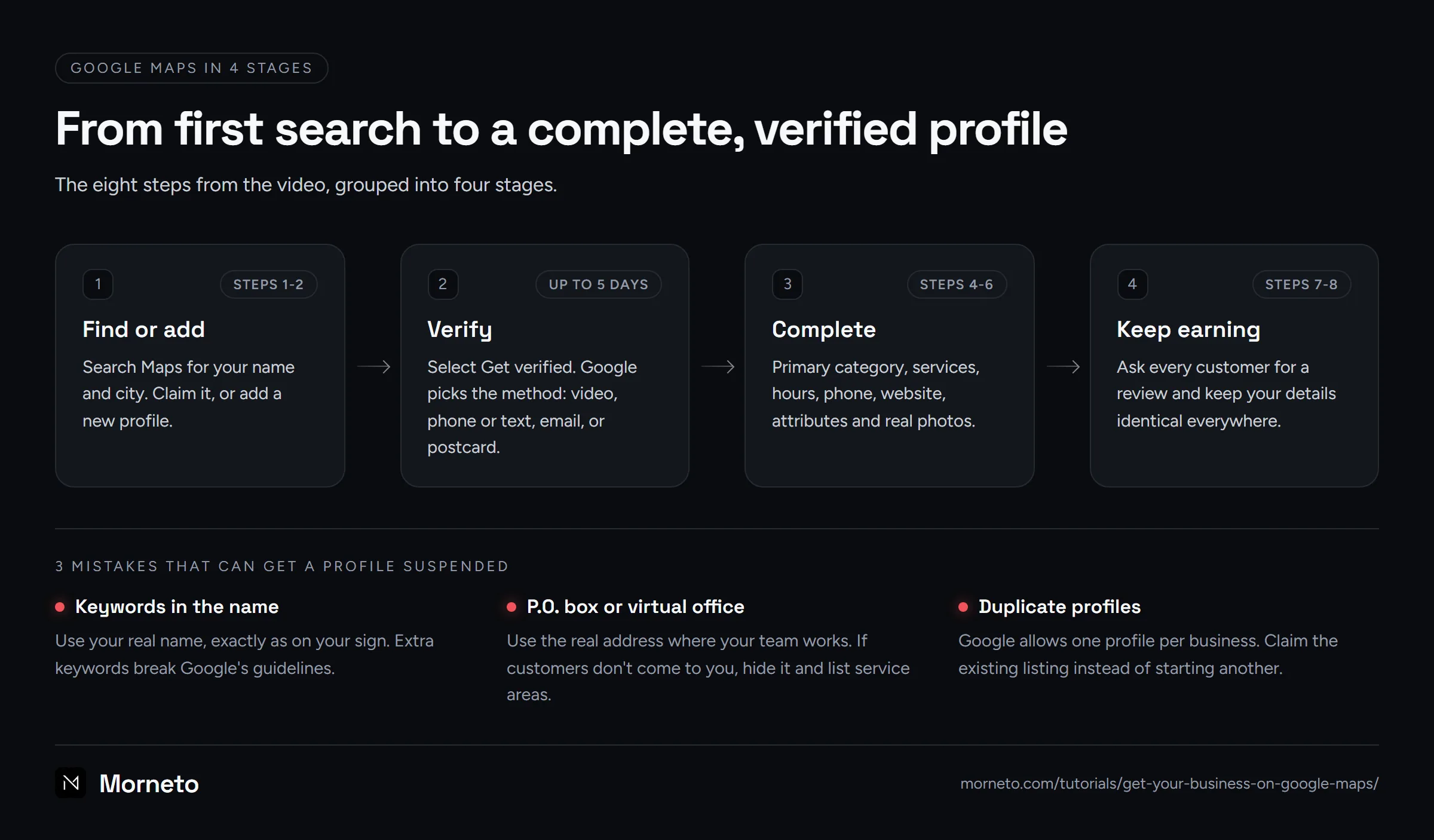
Should you show your address or a service area?
In step 2, Google asks how customers reach you. Your answer decides what Google Maps shows for your business, so choose the type that matches how you really work.
| Your business | Example | What you enter | Address visible? |
|---|---|---|---|
| Storefront: customers come to you | A cafe or a salon | Street address with suite and floor | Yes |
| Service-area: you go to customers | A plumber or a mobile pet groomer | Hidden address plus up to 20 service areas, like Brooklyn or Astoria | No |
| Hybrid: both | A locksmith with a shop | Street address plus service areas | Yes |
Hide your address only if customers don’t come to you. Also, keep your service area within about 2 hours of driving from your base. You can’t set it as a radius around your address, so list cities or ZIP codes instead. To change it later, select “Edit profile”, then “Location”. Next to “Business location”, select “Edit” and turn off “Show business address to customers”. Finally, select “Save”.
Which 3 mistakes can get a profile suspended?
Google may suspend profiles that don’t follow its guidelines. The video names three mistakes that break the rules Google sets for any business on Maps.
- Keywords stuffed into your business name. Your name should match your sign. So write Main Street Bakery, not Main Street Bakery Best Cakes Manhattan.
- A P.O. box or a virtual office as your address. Google rejects P.O. boxes and remote mailboxes. A virtual office is an address you rent for mail but don’t work from, so it isn’t eligible either. A coworking office counts only if it has clear signage and receives customers during business hours. Your own team must also work there during those hours.
- Two profiles for the same business. Google allows one profile per business. Keep one, and claim it, instead of starting a second.
If Google suspends your profile anyway, don’t create a new one. Instead, fix what breaks the guidelines, then use Google’s appeal tool. You can submit an appeal only once, so attach proof such as a business license or a utility bill. If it’s denied, you can still ask for one additional review with new evidence.
Two smaller slips cause delays rather than suspensions. While you wait for a postcard, don’t edit your name, address or category. Also, don’t request a second code, because that cancels the first one.
How does Google rank a business on Maps?
Google says a business shows up in local results on Maps and Search mainly because of three factors. You control the first one, and you build the third one over time.
Which three factors does Google name?
- Relevance: how well your profile matches what someone searches for. Complete, detailed info helps here. Experts rank the primary category first for Maps in Whitespark’s 2026 survey.
- Distance: how far you are from the person searching. If they don’t share a location, Google uses what it knows about where they are.
- Prominence: how well known you are. Google names links from other websites and how many reviews you have. Our guide to getting more Google reviews shows how to ask the right way.
Verification helps too, since Google says verified profiles are more likely to show up. However, Google’s local ranking tips are clear: there’s no way to request or pay for a better local ranking. You earn it.
What comes after the basics?
Once you’ve finished the basics, our guide to ranking in the New York map pack explains what comes next. If you’d rather hand off the work, Morneto offers Google Business Profile optimization. Either way, the profile stays in your name.
Sources
Where these steps come from
Checked on October 13, 2026 against the official help pages below.
- Add or claim your Business Profile – Google Business Profile Help
- Create a Business Profile – Google Business Profile Help
- Verify your business on Google – Google Business Profile Help
- Guidelines for representing your business on Google – Google Business Profile Help
- Manage your business address – Google Business Profile Help
- Manage your service areas for service-area & hybrid businesses – Google Business Profile Help
- Manage your business category – Google Business Profile Help
- Manage your services on your Business Profile – Google Business Profile Help
- Edit your Business Profile – Google Business Profile Help
- How long edits take to review – Google Business Profile Help
- How to set Special hours – Google Business Profile Help
- Tips for business-specific photos on your Business Profile – Google Business Profile Help
- Tips to get more reviews – Google Business Profile Help
- Prohibited & restricted content – Maps User Generated Content Policy Help
- Understand how Google sources & uses info in Business Profiles & local search results – Google Business Profile Help
- Resolve duplicate profiles & ownership issues – Google Business Profile Help
- Request ownership of a Business Profile – Google Business Profile Help
- Fix suspended or disabled profiles – Google Business Profile Help
- Tips to improve your local ranking on Google – Google Business Profile Help
- 2026 Local Search Ranking Factors – Whitespark
More tutorials
 Guide · 5 min
Google Business Profile
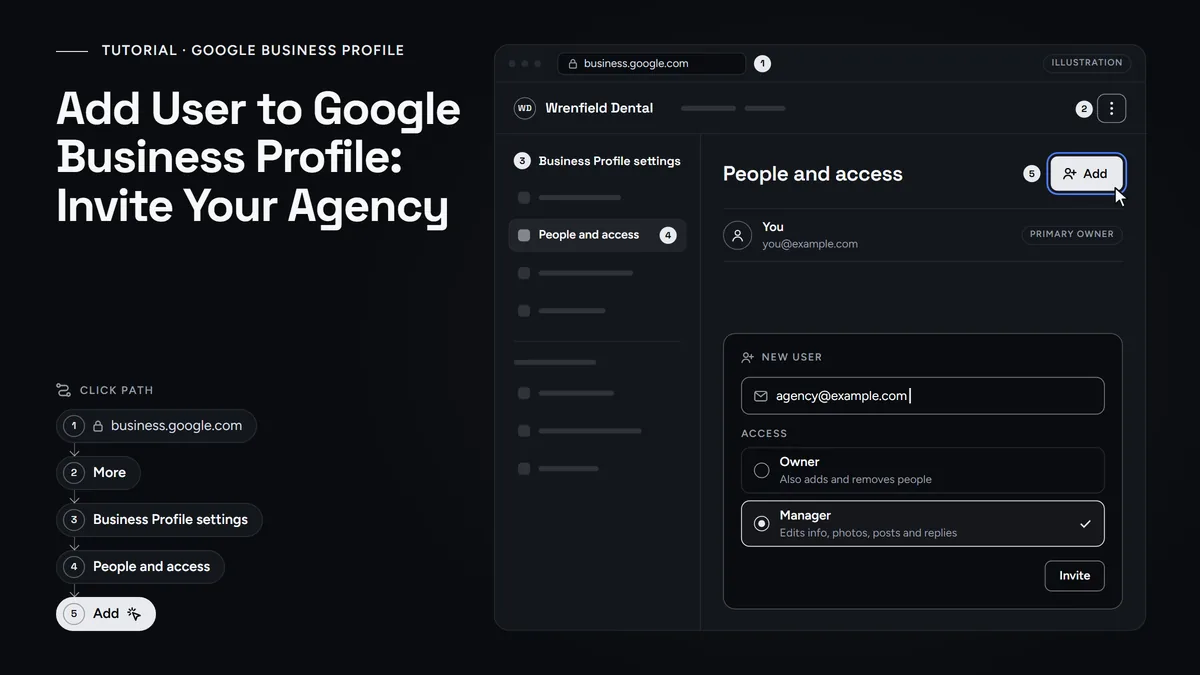
Add a user to Google Business Profile
Invite your agency or staff as a Manager, pick the right role, keep primary ownership and remove access when the work ends.
Read the guide- Guide · 5 min
Google Business Profile
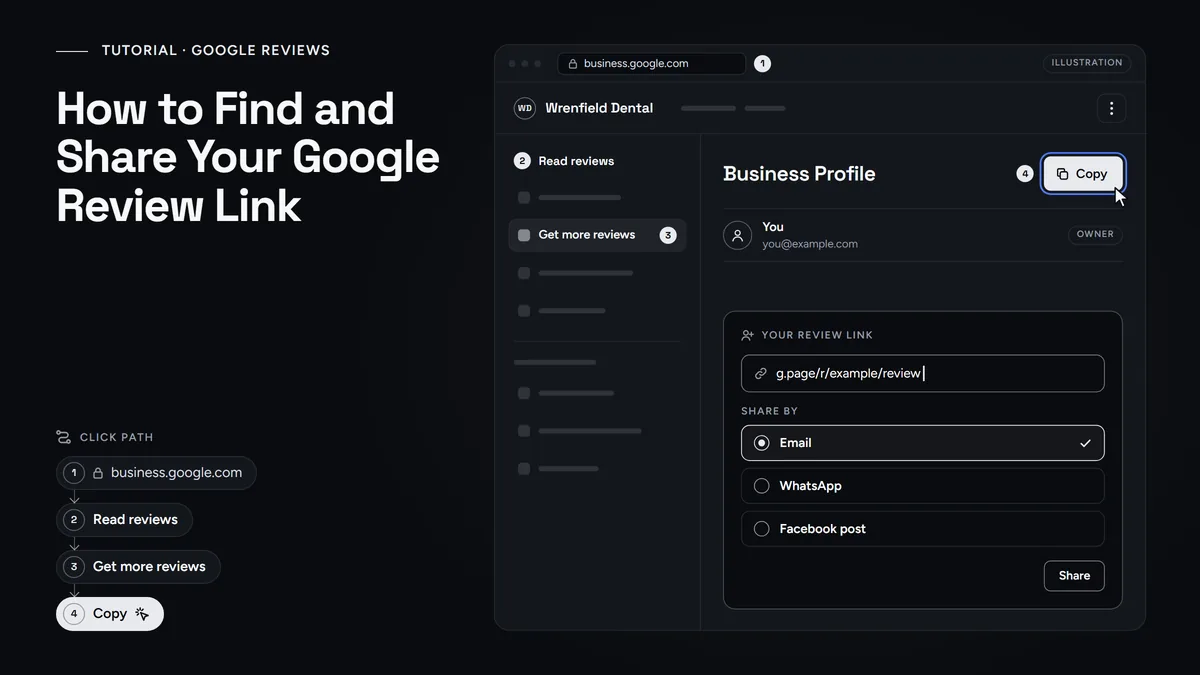
Find and Share Your Google Review Link
Copy the link and QR code Google makes for your Business Profile, then share it with every customer without breaking Google's review rules.
Read the guide
Questions
Common questions
Is it free to put my business on Google Maps?
Yes. Adding or claiming a Google Business Profile costs nothing. Google also says there’s no way to request or pay for a better local ranking. So what moves you up is a complete profile, real reviews and consistent details.
How long does it take for a new business to show up on Google Maps?
After you finish the verification steps, Google’s review takes up to 5 business days, and on rare occasions longer. Google usually reviews later edits within 10 minutes, but some take up to 30 days. A postcard code expires after 30 days, so enter it as soon as it arrives.
Can I list my home address if I work from home?
Yes. If customers come to your home, you can show it. If they don’t, Google says you must hide it, so turn off the address and list your service areas instead. You still enter an address Google can find for verification. However, customers only see the areas you serve.
Can I use a virtual office or a coworking address?
Not a virtual office, because Google doesn’t accept it. A coworking office counts only if it has clear signage and receives customers during business hours. Your own team must also work there during those hours. If it doesn’t qualify, list your real base, such as your home, as a service-area business and hide the address. A service-area business can’t use a virtual office either, unless your own staff work there during business hours.
What if someone else already verified my listing?
Go to business.google.com/add, find your business and select ‘Request Access’. The current owner then has 3 days to respond. If they don’t answer, you may get the option to claim the profile. If they decline, you can appeal. Service-area businesses without a shop should contact Google support instead.
Do I need an agency to get my business on Google Maps?
No. Every step on this page is free, and you can do it yourself. If you want help later, add that person as a manager and keep the owner role. Never share your Google password. Morneto never asks clients for theirs.
Need a hand?
Rather have us check it with you?
Send us a message through the contact page and we will walk you through it on a short call. You keep ownership of every account, and we never ask for your password.