
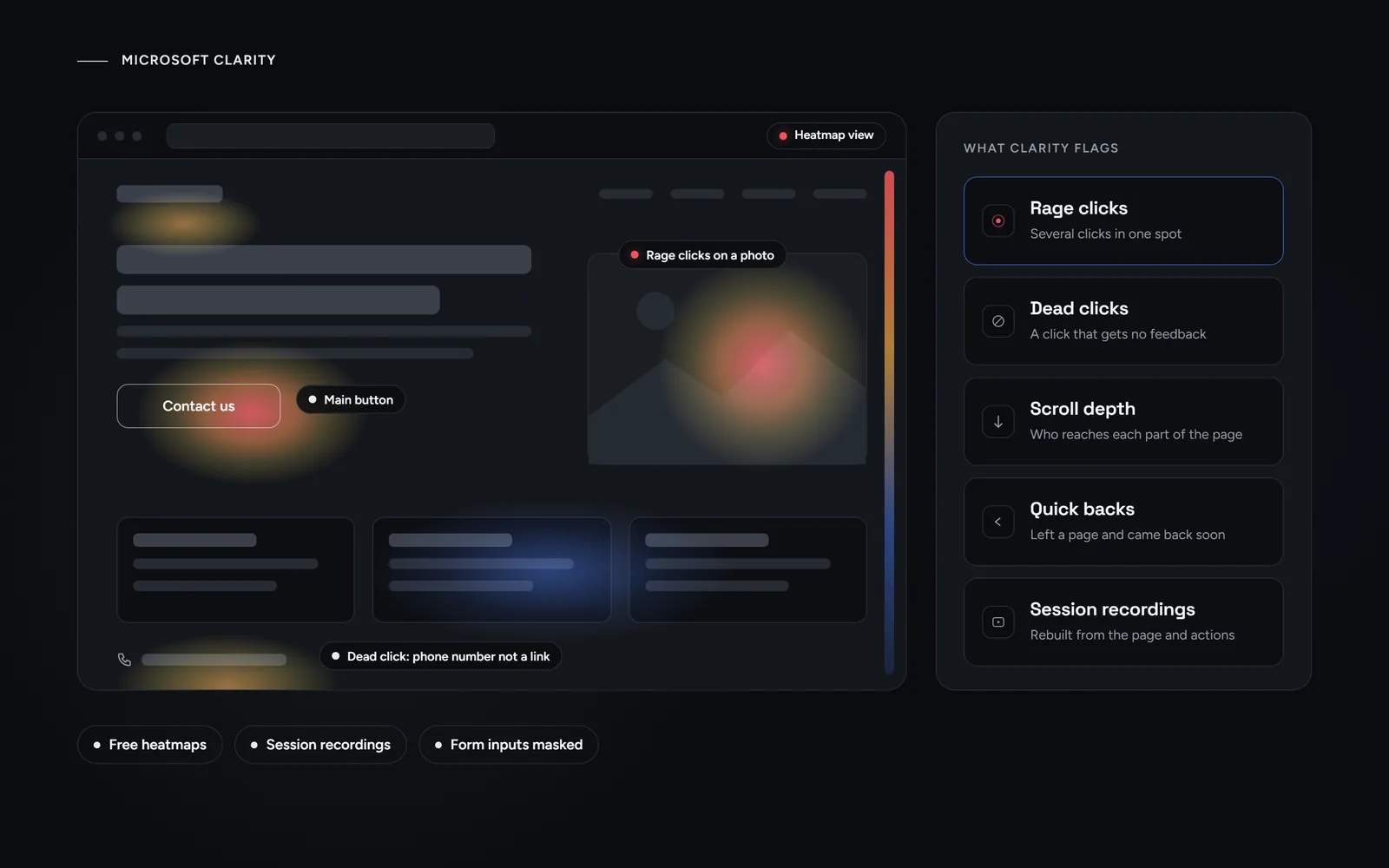
Short answer: Microsoft Clarity is a free tool from Microsoft that shows how visitors use your website. It gives you heatmaps, session recordings and flags such as rage clicks and dead clicks. Google Analytics 4 tells you how many people came and how many sent a form. Clarity helps you see why the rest did not.
Plenty of small-business websites get visitors every day and still no inquiries. Your analytics then say that something is wrong, but not where. That gap is what Clarity fills. Morneto is a web design, SEO and Google Ads studio in New York, and this guide sticks to Microsoft’s own documentation. We also say plainly what we run on our own site, and what we don’t.
What is Microsoft Clarity?
In Microsoft’s words, Clarity is a behavioral analytics tool that helps you understand how users interact with your website or app. You add a small tracking code, and Clarity starts collecting clicks, taps, scrolls and page visits. Microsoft says it is a free service forever, with no obligation to upgrade to a paid version. Its main parts are:
- Heatmaps. Click, scroll, area, conversion and attention maps, built from the visits to one page or a group of pages.
- Session recordings. A replay of one visit. According to Microsoft, these are not real videos but step-by-step reconstructions from the page’s HTML and the visitor’s actions.
- Insights. A dashboard that flags rage clicks, dead clicks, quick backs, excessive scrolling and JavaScript errors.
- Funnels and smart events. Ways to follow visitors through a series of steps and see where they leave.
A few limits matter for planning. Clarity records up to 100,000 sessions per project per day. Microsoft lists no sampling among its features, although it notes that recordings might not be available for every session. It keeps recordings for 30 days. After that, it keeps 1% of recordings or 10 per day, whichever is higher, for up to 9 months. Favorites also stay for up to 9 months.
What does Clarity show that Google Analytics 4 does not?
Put simply, GA4 counts and Clarity shows. GA4 can tell you that a page had many visits and few form submissions. However, it can’t show you the visitor who kept tapping a photo because they expected it to open. Clarity can, through these views:
- Where clicks land. A click map shows the elements people click, including ones that aren’t links.
- How far people read. A scroll map shows the share of visitors who reach each part of the page, plus the average fold. By contrast, GA4’s enhanced measurement sends a scroll event only the first time a visitor reaches 90% depth on a page.
- Rage clicks. Microsoft flags these when a visitor makes several clicks in one spot in rapid succession. It calls them strong indicators of frustration.
- Dead clicks. This is a click that gets no feedback in a reasonable time. Microsoft says it can point to broken elements, slow requests or misleading design.
- Quick backs and excessive scrolling. A quick back means a visitor left a page and came back within a short time. Excessive scrolling means more scrolling than the expected average, which can signal a frustrating layout.
- Errors after a click. Clarity tags every session in which a click causes a JavaScript error.
Still, the reverse holds too. GA4 is the better tool for where visitors come from, which campaigns brought them and how many completed a key action, such as a form. It also keeps event data longer. You can set GA4 retention to 2 or 14 months, while Clarity keeps most recordings for 30 days.
Microsoft Clarity vs Google Analytics: how do they compare side by side?
In short, they answer different questions, so many sites run both. Microsoft even offers a Google Analytics integration that links Clarity’s session playbacks to your Google Analytics dashboard.
| Question | Microsoft Clarity | Google Analytics 4 |
|---|---|---|
| Main job | What visitors do on a page, and where they get stuck | How many visitors came, from where, and what they completed |
| Heatmaps | Click, scroll, area, conversion and attention maps | Not its job: reports and explorations instead |
| Session recordings | Yes, rebuilt from the page and the visitor’s actions | No |
| Scroll | The share of visitors at each part of the page | One scroll event at 90% depth, with enhanced measurement on |
| Frustration signals | Rage clicks, dead clicks, quick backs, excessive scrolling | Not built in |
| Leads and traffic | The referring page on each session card, plus funnels and smart events | Traffic sources, campaigns and key events such as generate_lead |
| Data kept | Recordings 30 days, a sample up to 9 months | Event-level data for 2 or 14 months, your choice |
One caution on the integration. Microsoft says you can connect only one web property, and Clarity tries to create a custom dimension in Google Analytics to make the link work.
How do you use Clarity to find why visitors don’t contact you?
Start with a clear question, not with hours of recordings. For a service business, it is usually this: why do people reach the contact page or the call button, and then stop? Work through it in order:
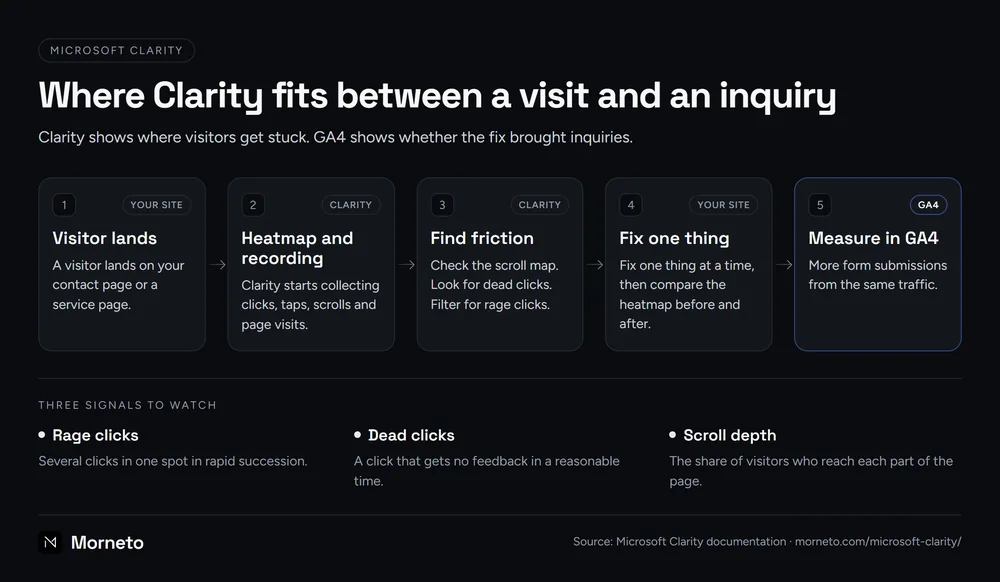
- Pick the pages that matter. A visitor lands on your contact page or a service page, so start there. Add any page your ads point to.
- Check the scroll map. If most visitors never reach your contact button, move the button up or shorten the page above it.
- Look for dead clicks. People tap things that look clickable, like a phone number in plain text, a photo or a bold heading. Each dead click hints at what the visitor expected.
- Filter for rage clicks. Then watch those recordings. A button that does nothing on a phone often shows up here first.
- Watch the form. Clarity masks what people type. Even so, you still see where a visitor clicks into the form and where they give up.
Sometimes the pattern is slowness, not design. Microsoft lists high latency requests as one cause of dead clicks, and a slow website loses customers before the page finishes rendering. In that case, speed is the first fix.
After that, fix one thing at a time, then compare the heatmap before and after. Microsoft Clarity has a heatmaps compare feature for exactly this. Finally, the proof sits in GA4: more form submissions from the same traffic. Clarity shows where visitors get stuck. GA4 shows whether the fix brought inquiries.
What would we look at first on a client site?
First, a plain fact about our own site: morneto.com does not run Microsoft Clarity. We checked the live HTML and our Google Tag Manager container on Oct 31, 2026, and found no Clarity code. Our privacy policy also says we run no heat maps or session recording. Instead, we run Google Analytics 4 through Google Tag Manager, since Aug 23, 2026. When someone sends our contact form, the confirmation page sends GA4 a generate_lead event. It records that an inquiry was sent and from which page, without the sender’s name, email or message.
So what follows is advice for a client site, not a case study. If a site gets visitors but few inquiries, we would check these first:
- The lead count. Without a working form event in GA4, you can’t tell whether a fix worked. Form submissions are one of the five SEO KPIs we check on our own site.
- Mobile visitors on the contact page. We would watch recordings of visitors who reached that page and left without sending anything.
- Pages behind ads. A landing page that is slow on mobile is one of the six usual causes in our guide to Google Ads that bring clicks but no calls.
- Phone numbers and addresses. Dead clicks on them can suggest that visitors want to call or get directions in one tap.
- Speed after the tag goes in. Microsoft says the Clarity script is asynchronous and doesn’t affect how quickly a website loads. Even so, we would test the key pages before and after. Our guide on how to make your website faster names heat maps among the usual third-party offenders.
How do you set up Microsoft Clarity?
You need a free project at clarity.microsoft.com, and Microsoft says no credit card is required to sign up. Each project gets its own tracking code. For a small-business site, three routes cover almost everyone:
- The tracking code. Paste it into the head section of your site. You need access to that part of the site’s code.
- Google Tag Manager. In Clarity, go to Settings, then Setup, then Google Tag Manager, and select Finish setup. Alternatively, add the Microsoft Clarity – Official template from the Community Template Library, enter your project ID and fire it on All pages.
- The WordPress plugin. In WordPress, add a new plugin, search for Microsoft Clarity, then install and activate it. Next, sign in from the plugin and pick or create a project. Microsoft says these steps also apply to WooCommerce sites.
To check the install, open your browser’s developer tools and go to the Network tab. Then look for requests to clarity.ms/collect while you click around. Data shows up in the project almost right away. By default, Clarity also detects bot traffic and leaves it out of your session count.
What do privacy and consent mean for Microsoft Clarity?
This part deserves care, and what follows is general information, not legal advice. Clarity sets cookies that store a pseudonymous ID and tie page views together: _clck and _clsk on your own domain, plus third-party Microsoft cookies such as MUID. Microsoft’s own cookie list says MUID is used for advertising, site analytics and other operational purposes. Its FAQ also says you need to inform your users about the cookies Clarity uses. So update your privacy policy before the tag goes live.
Consent comes next. For visitors from the European Economic Area, the UK and Switzerland, Microsoft has enforced consent signals since October 31, 2025. Microsoft’s documentation on Clarity’s Consent Mode says it is on by default for those visitors, so Clarity waits for a valid signal before it sets cookies. You can pass that signal through a supported consent tool, such as CookieYes, or through Clarity’s consentv2 API. Without consent, Clarity assigns a unique ID per page view and uses no cookies. As a result, recordings aren’t linked into multi-page sessions. Microsoft’s FAQ adds that a site with no visitors from those regions needs no explicit consent signal. That says nothing about other laws, such as US state privacy rules, so check with your own advisor.
Masking is the other half. In the default Balanced mode, Clarity masks numbers and email addresses. Text in input boxes and drop-down menus is masked in every mode, and masked content is never uploaded. You can also mask more with the data-clarity-mask attribute. However, Clarity doesn’t mask content inside style sheets, and masking changes don’t apply to old recordings.
Our own privacy policy promises to describe a material change, such as new analytics cookies, before it takes effect. That is a sensible rule for any site that adds Clarity.
When is Clarity worth adding to your site?
Microsoft Clarity earns its place when you have traffic but too few inquiries. It also helps right after a redesign, or when an ad landing page underperforms. In those cases, a week of recordings can say more than a month of reports. On the other hand, wait if any of these apply:
- Very little traffic. Microsoft sets no minimum for heatmaps, but a page with few visits gives you few patterns to learn from.
- No lead tracking yet. Set up a form event in GA4 first, so you can measure the fix.
- No privacy update planned. Add the tag only once your policy and, for European visitors, your consent setup are ready.
- A young audience. Microsoft says Clarity shouldn’t be used on sites or apps that target users under 18.
Sometimes the recordings reveal a problem that no setting can fix, such as a contact page that needs a rebuild. That is where our web development work for New York businesses, with builds from $997, comes in. You can compare our published prices for websites, SEO and Google Ads on one page. Or, if you want a second pair of eyes first, ask us for a free audit of your search visibility. We reply within one working day.
Common questions about Microsoft Clarity
Is Microsoft Clarity really free?
Yes. Microsoft says Clarity is a free service forever, with no traffic limits and no obligation to upgrade to a paid version. You don’t need a credit card to sign up.
Does Clarity slow down a website?
Microsoft says the Clarity script is asynchronous and doesn’t affect how quickly a website loads. Still, test your key pages in PageSpeed Insights before and after you add it.
Can Clarity see what people type into my forms?
No. Text in input boxes is masked in every masking mode, and masked content is never uploaded. In the default Balanced mode, Clarity also masks numbers and email addresses on the page.
Does Clarity replace Google Analytics?
No. GA4 counts visits, traffic sources and leads, while Clarity shows behavior on the page. The two work best side by side, and Microsoft offers an integration that links them.
How long does Clarity keep recordings?
For 30 days. After that, Microsoft keeps 1% of recordings or 10 per day, whichever is higher, for up to 9 months. Recordings you mark as favorites also stay for up to 9 months.