Short answer: Google Ads Editor is a free desktop application from Google for managing Google Ads campaigns offline. You download your account, make changes in bulk – keywords, ads, budgets, whole campaign structures – and nothing touches the live account until you review and post it. For anyone running more than one campaign, it is faster and safer than clicking through the web interface change by change.
Last updated September 1, 2026. Everything below describes the tool as Google ships it; where our own Google Ads management workflow comes in, we say so explicitly.
Most business owners have only ever seen Google Ads in the browser. That works fine for checking results, but the moment you need to change forty keywords, duplicate a campaign for a second neighborhood, or fix the same typo in thirty ads, the browser becomes the slow way. This guide explains what the desktop tool is, where it beats the web interface, and when you can safely ignore it.
What is Google Ads Editor?
Google Ads Editor is Google’s own desktop application for Windows and Mac, and it costs nothing. Instead of working inside a browser tab, you download a local copy of your account – campaigns, ad groups, keywords, ads, budgets – and edit that copy at your own pace, even offline. When you are done, you post the changes back in one batch. Think of it as the difference between editing a document in a proper editor and editing it one character at a time through a letterbox: the same account, a far better grip on it.
What does the desktop tool do better than the web interface?
The web interface is built for one change at a time. The desktop tool is built for many:
- Bulk edits. Change bids, URLs or ad text across hundreds of keywords and ads at once, with find-and-replace that works account-wide.
- Copy and paste between campaigns. Duplicate a campaign that works in one service area and adapt it for the next – the fastest honest way to scale structure.
- Spreadsheet import and export. Build keyword lists or ads in a spreadsheet, then import them in one move instead of typing them in.
- Drafts by default. Every change is local until you post it, and built-in checks flag policy problems and broken settings before anything goes live.
- Multiple accounts side by side. Useful for anyone managing more than one business or location.
One honest limitation: brand-new campaign types tend to arrive in Google Ads Editor a version or two after they appear in the browser, so occasional features remain browser-only for a while. The core work – search campaigns, keywords, ads, budgets – is fully covered.
When is Google Ads Editor worth using for a small business?
A one-campaign account with ten keywords does not need a desktop tool; the browser is fine. The tipping point comes with structure. In New York that usually means splitting campaigns by service and by area, and that split multiplies everything: more ad groups, more keywords, more ads saying the right neighborhood. Our guide to a realistic Google Ads budget for a small business explains why structure, not spend, is usually the first fix – and structural work is exactly what the desktop tool is for. The same goes when you expand beyond Google: running Microsoft Advertising alongside Google Ads starts with importing your Google campaigns, and a clean local copy makes that import clean too.
How do you get started, step by step?
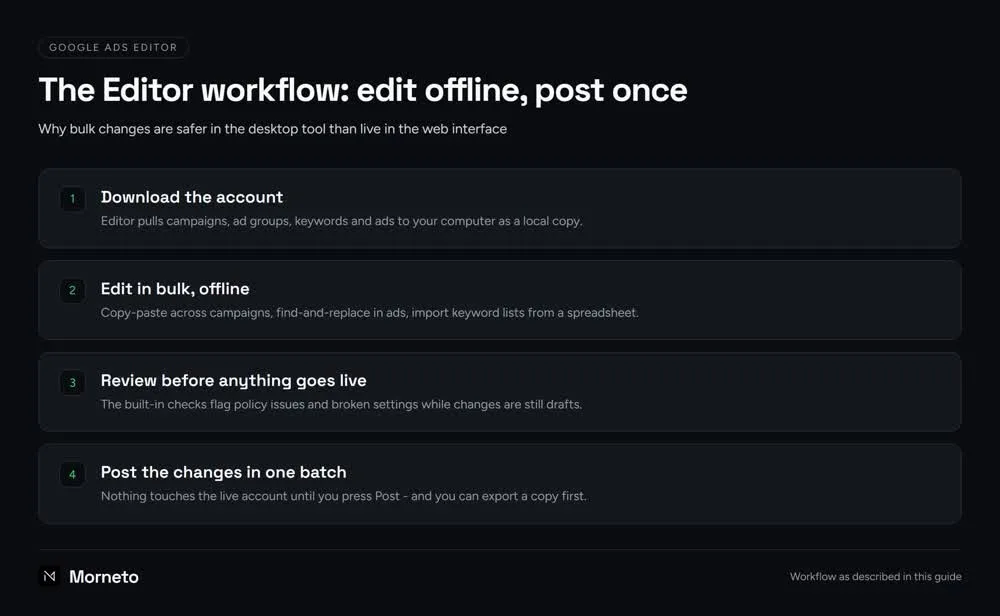
The workflow has four steps, and the order is the point: nothing goes live until the last one.
- Download the account. Install the application, sign in, and let it pull a local copy of your campaigns.
- Make your changes offline. Bulk edits, copied campaigns, imported keyword lists – all against the local copy.
- Review what changed. The tool lists every pending change and flags errors and policy issues while everything is still a draft.
- Post in one batch. Press Post and the changes go live together. Exporting a backup first takes one click and is always worth it.
Do you still need it when someone manages your ads?
No – but whoever manages your account should be fluent in it, and asking about it is a surprisingly good filter. When you hire a Google Ads expert, ask how they make bulk changes and how they duplicate structure between areas; an answer that never mentions the desktop tool suggests everything is being clicked together by hand. In our own weekly Google Ads management routine the Editor is where structural work happens – campaign builds, area duplications, negative keyword imports – while the browser handles daily checks like the search terms report. What that management costs is public: the flat monthly pricing is on this page, and it does not change with your budget. Related reading if you are weighing automation instead: our plain-English guide to Performance Max covers when Google’s automated campaign type earns a place next to hand-built search campaigns.
Common questions about Google Ads Editor
Is Google Ads Editor free?
Yes. It is an official Google application, downloaded from Google directly, with no cost and no license. If a site charges for it, you are on the wrong site.
Does it work on Mac and Windows?
Yes, Google ships versions for both. The account copy lives on your computer, so a reasonably modern machine handles even large accounts without trouble.
Can it break my live campaigns?
Not by itself. Changes stay local until you press Post, and the review step lists everything that will change. Export a backup first and any mistake is reversible.
Do I need it if an agency runs my ads?
No. But it is a fair interview question: ask a prospective manager how they handle bulk changes. Fluency with the tool usually signals disciplined account work.